Managing Courses
Step-by-step guide to creating, editing, publishing, managing tag access, and removing courses.
This guide covers creating a course, setting its content scope through the tag hierarchy, publishing it, and keeping it updated over time.
# Opening Course Management
Navigate to Manage Courses from the main menu. The Courses list page shows all your courses with their current status. By default, archived (Withdrawn) courses are hidden — check Show Archived in the toolbar to include them.
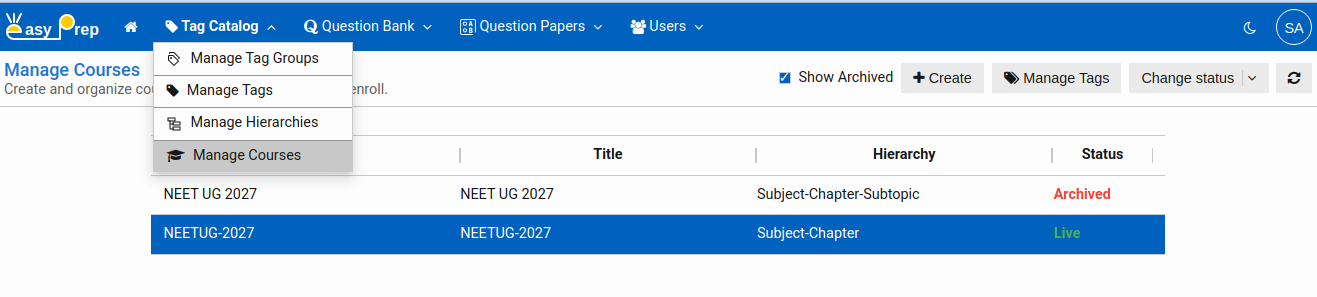
# Creating a Course
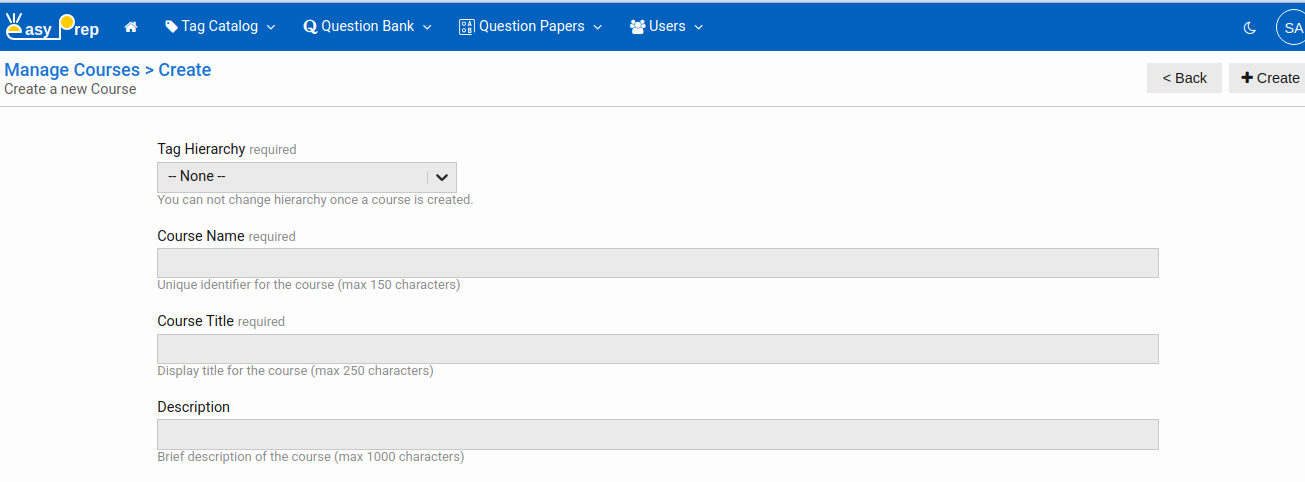
Click Create in the toolbar. The course editor opens.
# Fields
| Field | Required | Description |
|---|---|---|
| Name | Yes | A short code for the course, used in URLs and filters (e.g., neet-2026) |
| Title | Yes | The full display name candidates see (e.g., "NEET 2026 Preparation") |
| Description | No | A brief summary of what the course covers |
| Tag Hierarchy | Required | The Tag Hierarchy that defines this course's subject structure. |
Click Save when done. The course is created with status Under Review.
Note: Tag Hierarchy can not be changed once a course is created.
# Editing a Course
Select a course in the list and click Edit. Make your changes and click Save.
Note: A Live course cannot be edited. You must Mark for review it first, make changes, then publish it again.
# Managing Course Tags
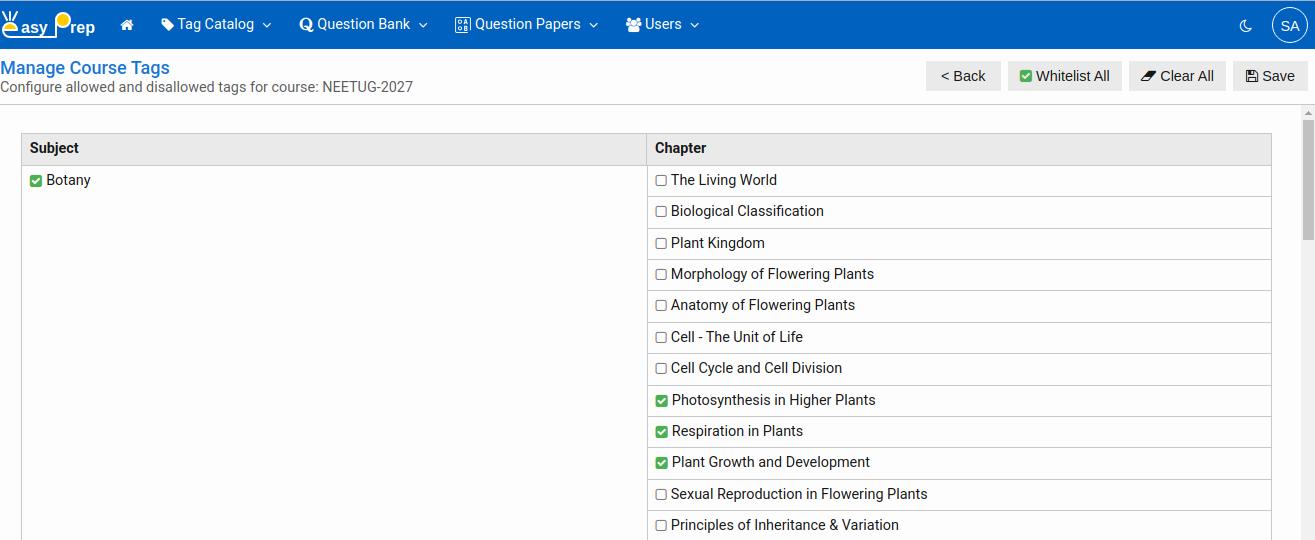
The Manage Tags feature lets you decide which part of the Tag Hierarchy is active for this course. By default, all tags are available. Restricting tags lets you scope the course to only certain portion of content.
Select the course in the list and click Manage Tags in the toolbar.
# How it works
The page shows your entire Tag Hierarchy as a tree. Each node (tag) can be set to one of three states:
| State | What it means |
|---|---|
| Allow | This tag and all its children are included in the course |
| Disallow | This tag and all its children are excluded from the course |
| None | Inherits from parent (default for all tags) |
Click a node to cycle through the states: None → Allow → Disallow → None.
When you toggle a parent node, all child nodes are automatically set to the same state. When you toggle a child node, the parent is adjusted to reflect the change (if the parent was "none", it adopts the child's state).
Toolbar shortcuts:
- Whitelist All — set everything to Allow
- Clear All — reset everything back to None
Click Save to apply the changes.
Tip: Use Disallow sparingly. A common pattern is to Whitelist all tags and then Disallow only specific branches you want to exclude.
# Publishing a Course
Select the course in the list, then click the Change Status dropdown button in the toolbar and choose Go live. Confirm the action when prompted.

Once live:
- The course is accessible to candidates in any groups it is assigned to.
- The course becomes read-only (cannot be edited while live).
# Withdrawing a Course
Select the live course, click Update Status → Archive Course. The course is immediately removed from active access. You can re-publish it later after making any necessary changes.
# Removing a Course
Select a course with status Mark for review or Archived and click Remove. You will be asked to confirm. Removed courses are permanently deleted.
Note: Live courses cannot be removed directly. Archive them first.
Next: Managing Groups — assign courses to groups so candidates can access them.