Managing Groups
Learn how to create groups, assign courses to them, and configure group permissions — so all users in the group inherit the correct access.
Groups let you manage user access in bulk. Instead of configuring courses and permissions for each user individually, you set them up once on the group and every member automatically inherits them.
# Opening Group Management
Navigate to Users → Groups from the main menu. The Groups page shows all groups in your institution.
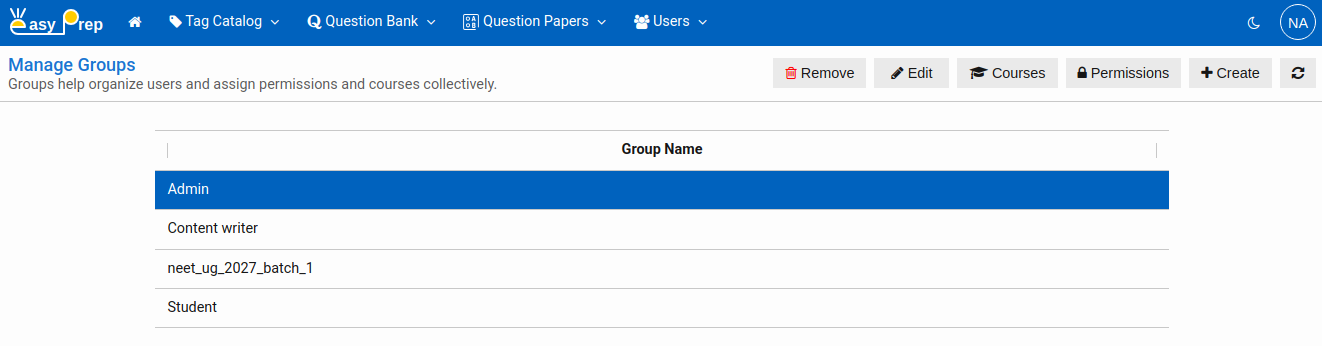
# Creating a Group
Click Create in the toolbar. Enter a Group Name and click Save.
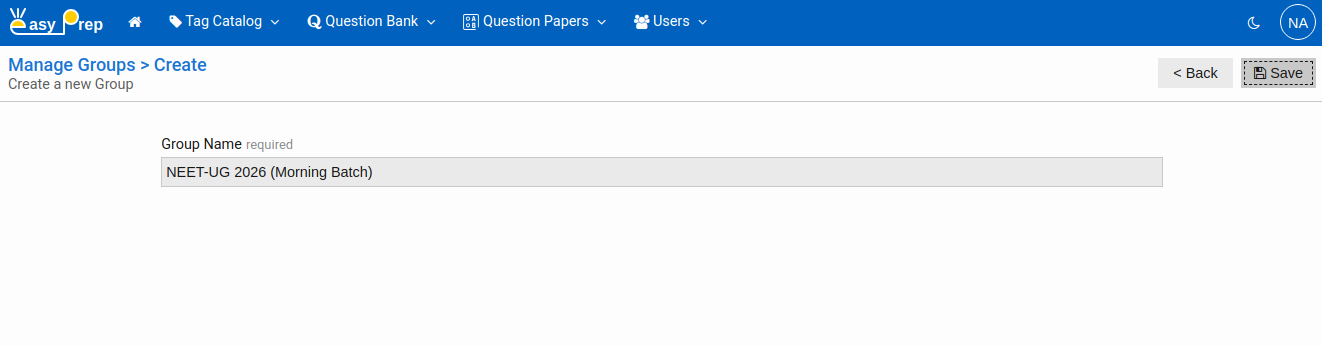
The name should reflect the role or purpose of the group (for example, Content Authors, NEET Reviewers, Batch 2026 Students).
# Editing a Group
Select a group in the list and click Edit. Update the name and click Save.
# Removing a Group
Select a group and click Remove. Confirm the deletion. Removing a group does not delete the users in it — it only removes the group itself. Users who were members lose the permissions and course access they had inherited from that group.
# Assigning Courses to a Group
Groups also act as a bridge between your courses and users. Create a Group for your Batch. Then assign users to this group. Also assign courses for that batch to this group. This gives you enough flexibility to allow any course to any batch.
- Select the group in the list.
- Click Courses in the toolbar.
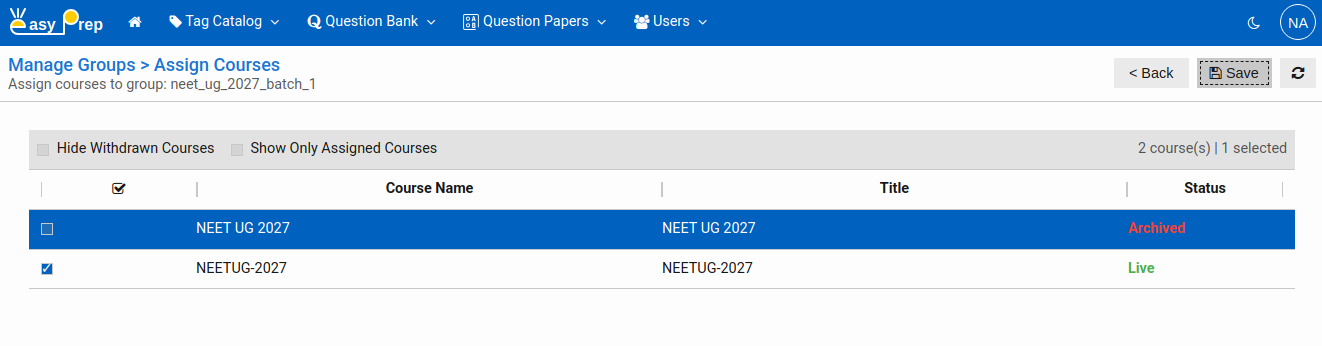
The page shows all available courses. Courses currently assigned to the group are pre-checked.
Filtering options:
- Hide Withdrawn Courses — hide courses with Archived status from the list
- Show Only Assigned Courses — show only the courses already assigned to this group
Check or uncheck courses as needed, then click Save to apply the changes.
Note: Only Live courses should be assigned to groups that have active candidates. Under Review or Withdrawn courses will show in the list but are not accessible to candidates.
# Managing Group Permissions
In general cases, you should not require to manage permissions for a group. But if you have expanded the roles and have created groups for them, you need to assign permissions for those groups.
This controls what the group's members are allowed to do — such as creating questions, reviewing papers, or managing users.
- Select the group in the list.
- Click Permissions in the toolbar.
# Understanding the Permissions page
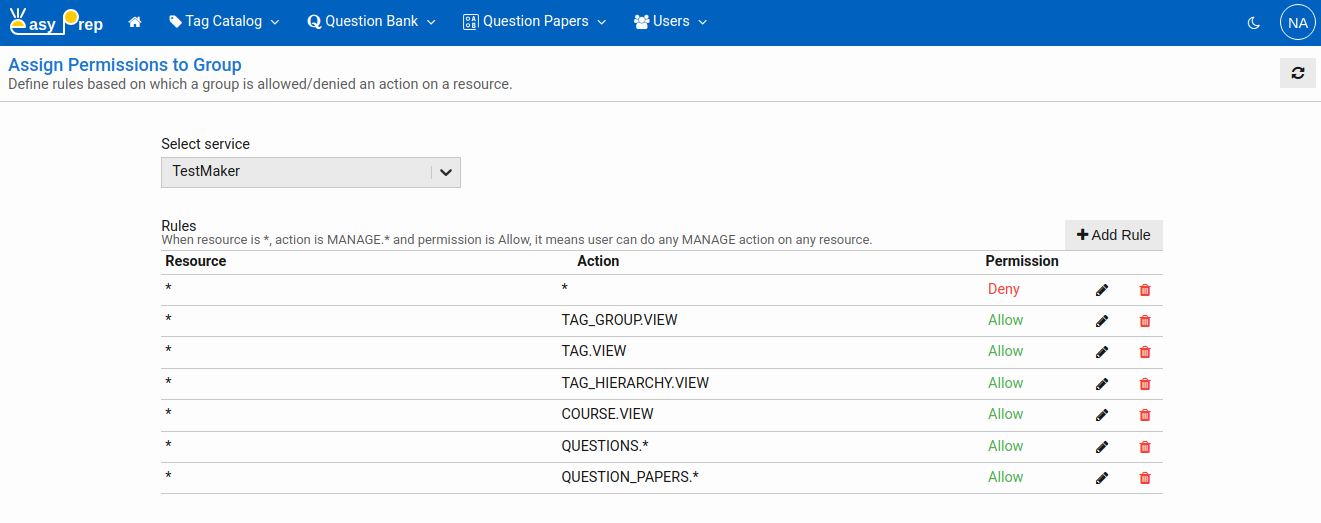
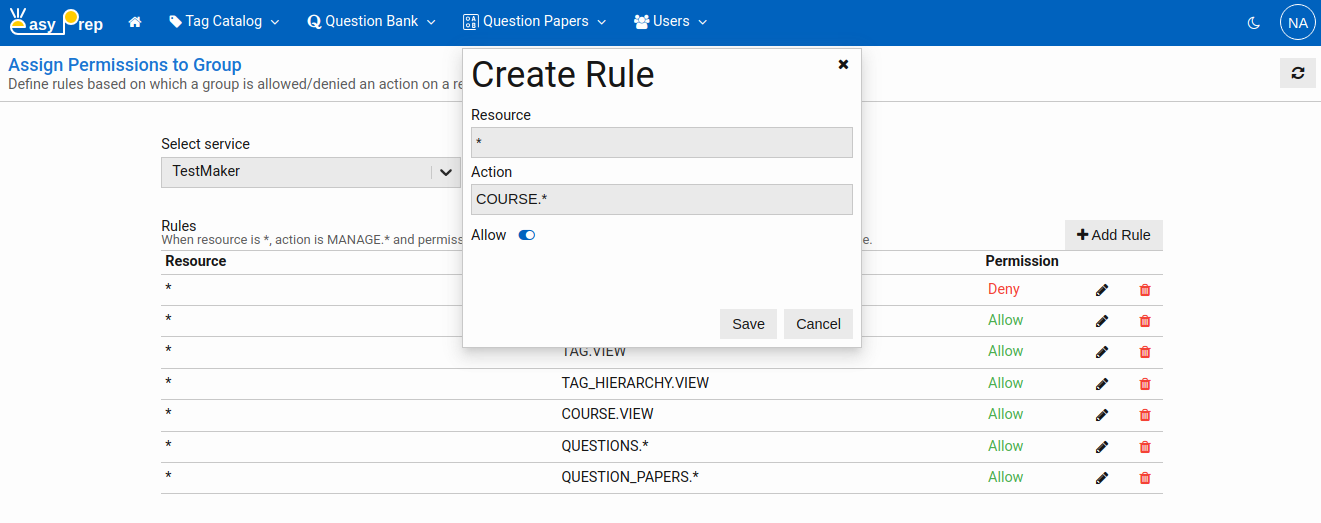
At the top, a Service selector lets you choose which part of the platform you are configuring rules for. Select the relevant service from the dropdown.
Below the service selector, the Rules table lists all permission rules currently assigned to this group.
Each rule has three properties:
| Property | Description |
|---|---|
| Resource | The resource type. Use * for all resources. |
| Action | The action name. |
| Permission | Allow — the action is permitted. Deny — the action is explicitly blocked. |
# Adding a rule
Click Add Rule. A dialog opens where you specify the Resource, Action, and Permission (Allow or Deny). Click Save to add the rule.
Actions page defines all the services and actions exposed by the platform.
# Editing or removing a rule
Use the Edit and Delete buttons on the right side of each rule row to modify or remove existing rules.
Next:
- Managing Users — a deeper look at how users are managed in the system.
- Managing Permissions — a deeper look at how the permission rule system works, including user-level rules and inherited permissions.