Managing Users
Learn how to create, edit, block, unblock, and remove user accounts, and how to assign users to groups.
This guide covers everything you need to do with individual user accounts — creating them, assigning them to groups, blocking access, and removing accounts.
# Opening User Management
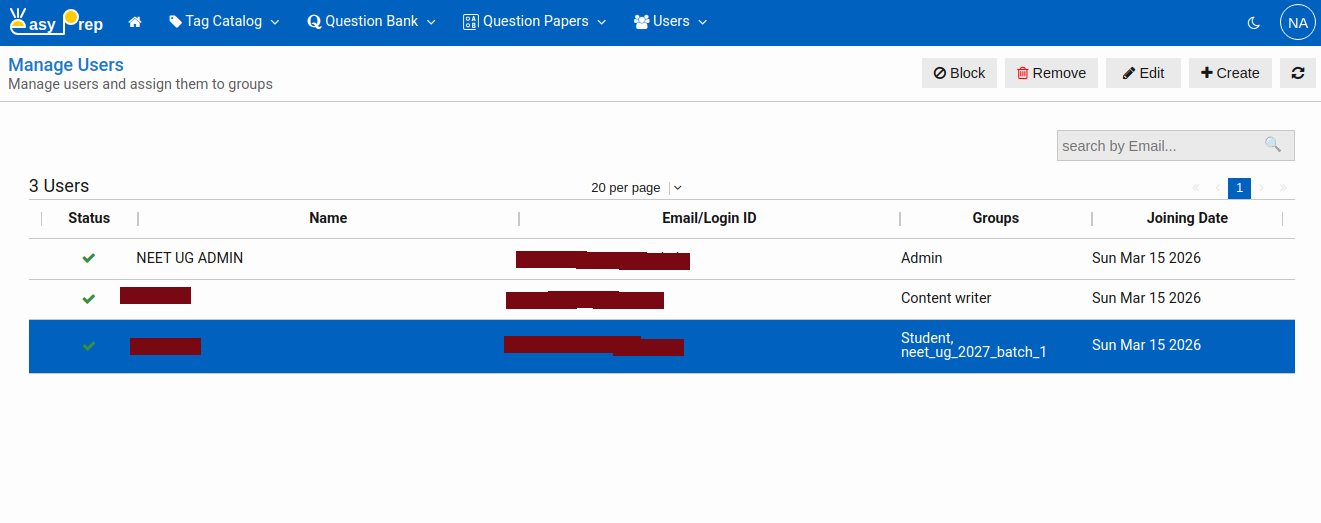
Navigate to Users from the main menu. The Users page lists all accounts in your institution with their name, email, and active/blocked status.
# Searching Users
Type in the Search by Email box at the top-right of the list and press Enter to filter users by email address.
The results are paginated — use the pagination controls to browse large user lists.
# Creating a User
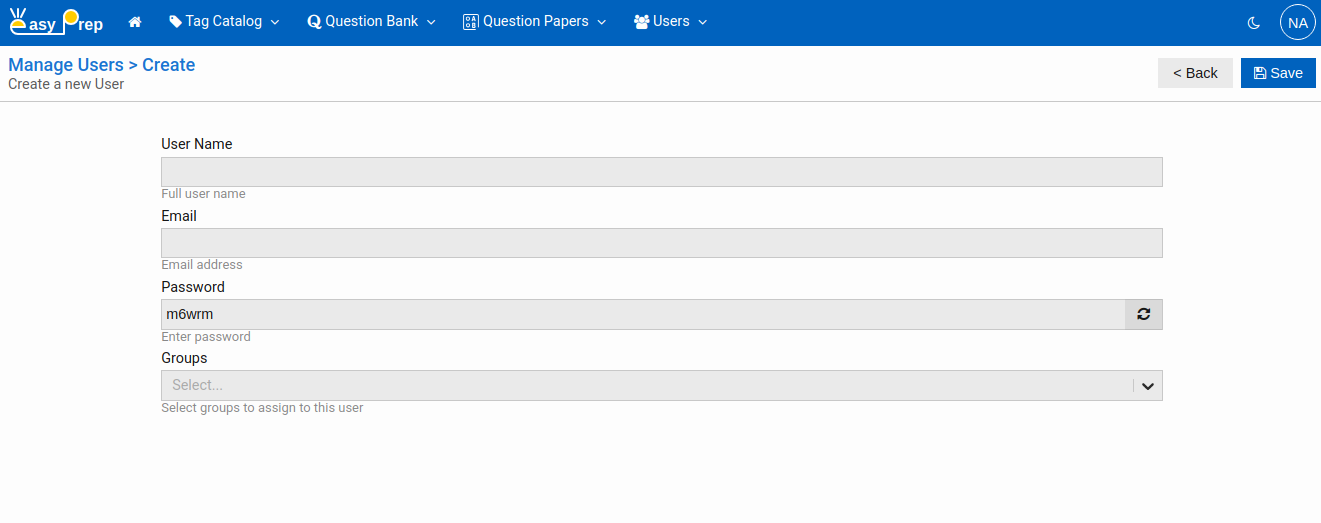
Click Create in the toolbar. The user form opens.
# Fields
| Field | Required | Description |
|---|---|---|
| Username | Yes | The display name for the user |
| Yes | The user's email address — used to log in. Must be a valid email format. It must be unique to your institute. | |
| Password | Yes (new users only) | Initial password. Must be at least 6 characters. A random password is pre-filled — you can keep it or replace it. |
| Groups | No | Select one or more groups to assign this user to. The user inherits all permissions and course access from the selected groups. |
Click Save to create the account. The user is created with Active status and can log in immediately with the give Email and Password.
# Editing a User
Select a user in the list and click Edit. You can update the username, email, and group assignments. Passwords cannot be changed from this form — the user resets their own password through the login screen.
Click Save when done.
# Assigning Users to Groups
Groups are assigned on the user's edit form. Select the user → click Edit → use the Groups multi-select to add or remove group memberships → Save.
A user can belong to multiple groups simultaneously. They inherit permissions and course access from all their groups.
# Preventing user to log-in
# Blocking a user
Blocking prevents the user from logging in without deleting their account.
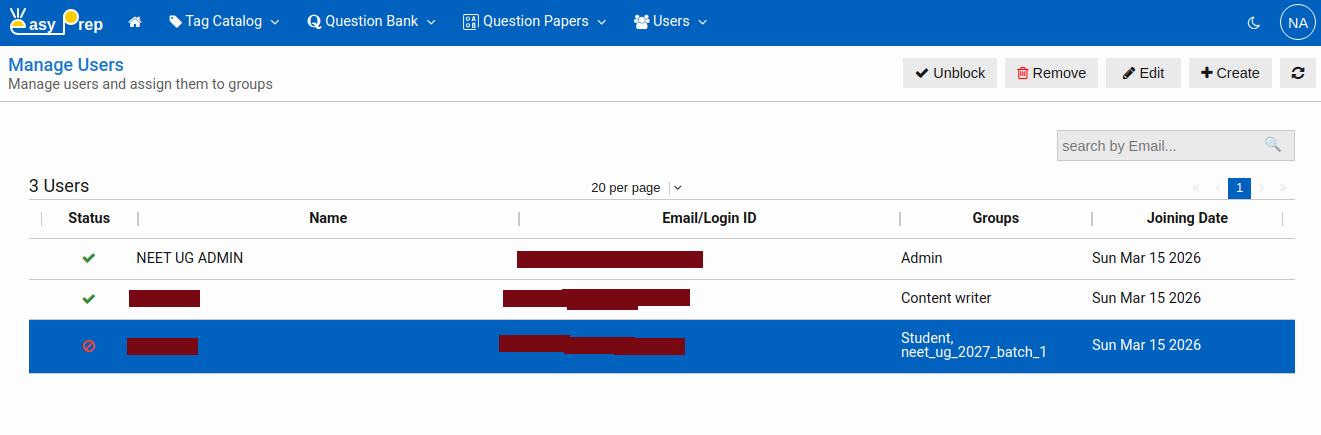
Select an Active user from the list. The toolbar shows a Block button. Click it and confirm. The user's status changes to Blocked (shown with a ban icon in the list) and they can no longer sign in.
# Unblocking a User
Select a Blocked user. The toolbar shows an Unblock button. Click it and confirm. The user's status returns to Active and they can log in again.
# Removing a User
Select a user and click Remove in the toolbar. You will be taken to a confirmation screen. Confirm to permanently delete the account.
Note: Removing a user is permanent. Their submission history and activity records may be retained for reporting purposes, but the login account is deleted.
Back To: Managing Groups — learn how to organize users into groups and assign them courses and permissions.