Student Home Page
A guide for students on how to navigate their home page, find their courses, and reach their practice tests.
When you log in, the first screen you see is your Home Page. This is the starting point for all your study activity.
# Your Subscriptions
Your Subscriptions lists all the courses that have been assigned to you. If you do not see your course, please contact your institute's administrator.
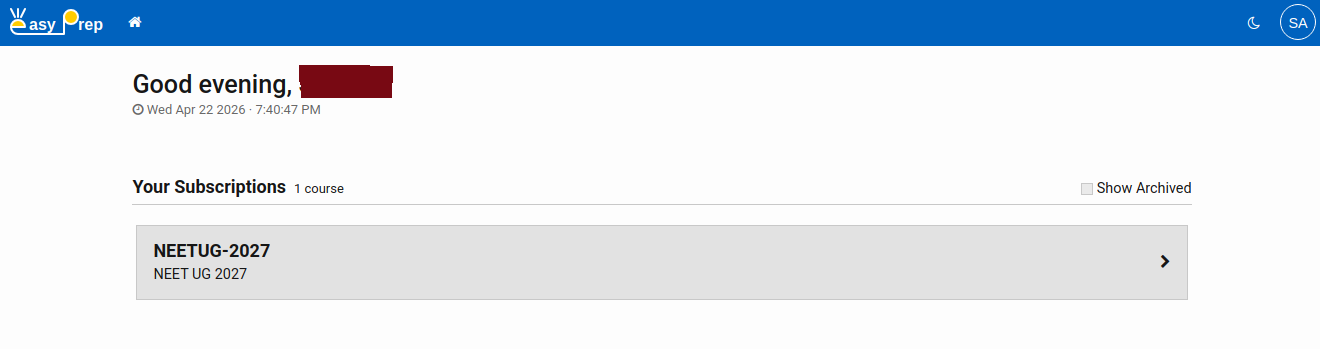
# Opening a course
Click on any course tile to enter it. After the course loads, you will be taken to the Topic Selector page where you can choose what to study.
Note: Only active (live) courses can be opened. Archived courses are shown with an "Archived" label and cannot be opened.
# Show Archived
In the top-right of the Subscriptions section there is a Show Archived checkbox. Check it to also see courses that are no longer active. These are read-only and cannot be opened, but you can see their names.
# The Topic Selector
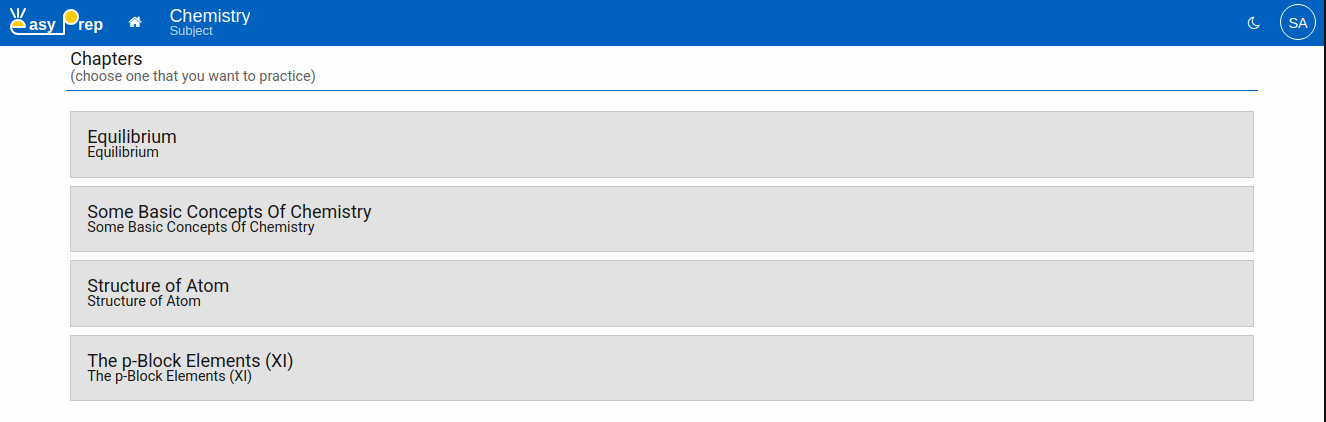
After selecting a course, the app takes you to the Topic Selector page. Here you drill down through the course's topic hierarchy step by step to reach your specific topic.
For example, a course organized by Subject → Chapter would show you:
- A list of Subjects — click one to continue
- A list of Chapters within that subject — click one to continue
Each level only shows options that are relevant to your selection at the previous level.
# Navigation breadcrumb
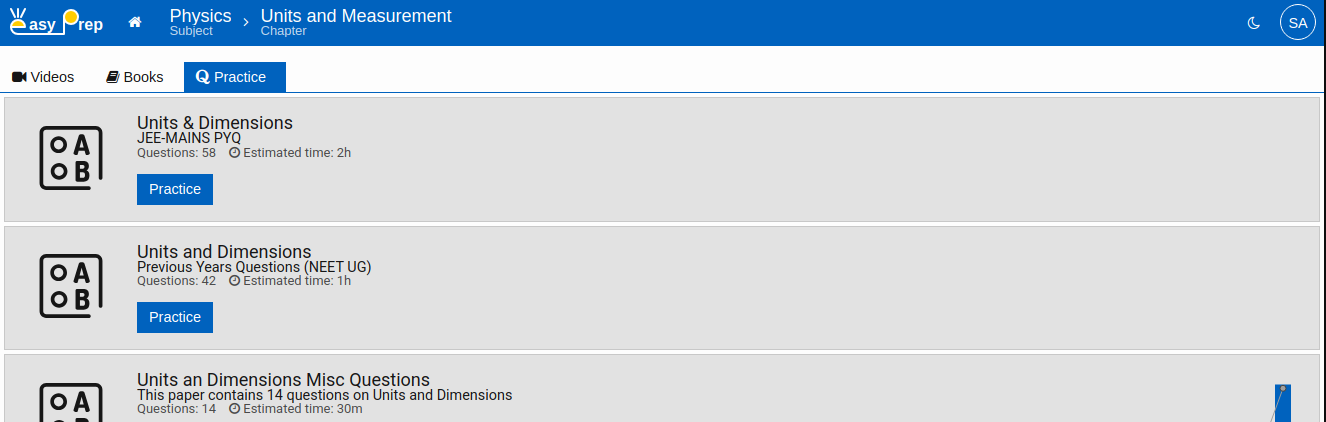
Once you have made your selections, the breadcrumb bar (shown in the top toolbar) displays your chosen path, for example: Physics → Mechanics → Newton's Laws.
Each item in the breadcrumb is clickable. Click any level to go back and make a different selection from that point. Everything below that level is cleared so you can choose again.
# Topic Summary Page
Once you have selected all levels of the topic hierarchy, you arrive at the Topic Summary page for your chosen topic. This page has three tabs:
| Tab | Content |
|---|---|
| Videos | Video lessons related to this topic |
| Books | Reference books and reading materials |
| Practice | Question papers available for this topic |
The Practice tab is where you will spend most of your time. See below for what is available there.
# Practice Tab — Your Test Papers
The Practice tab lists all the question papers available for the selected topic. For each paper you can see:
- Paper title and subtitle
- Number of questions in the paper
- Estimated time to complete the paper
# Buttons on each paper
| Button | When it appears | What it does |
|---|---|---|
| Practice | First attempt | Starts the test for the first time |
| Retake | After at least one attempt | Starts a fresh attempt on the same paper |
| Report Card | After at least one attempt | Opens your performance report for the most recent attempt |
| View Solutions | After at least one attempt | Opens the solution analysis for the most recent attempt |
# Score history chart
If you have taken the same paper more than once, a small bar chart appears on the right side of the paper tile. Each bar represents one attempt — the height shows your score percentage. Click a bar to jump directly to that attempt's report card.
