Taking a Test
A complete guide to the student test interface — understanding the toolbar buttons, navigating questions, submitting your test, and reviewing your results.
When you click Practice or Retake on a paper, the test player opens. This page explains every part of the test screen so you know exactly what each button does.
# Starting the Test
The system automatically creates a new attempt for you and loads the paper. While it loads you will see a spinner. Once loading is complete, the test begins immediately.
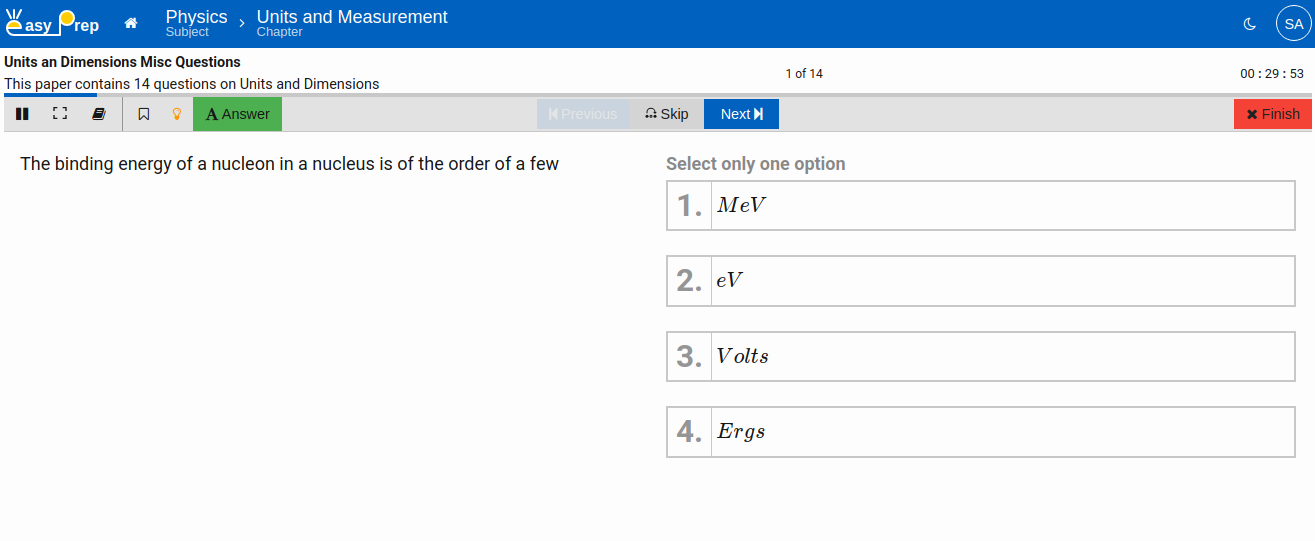
# Header
The top bar always shows three things:
| Area | Description |
|---|---|
| Paper title | The name of the test you are taking (and subtitle if provided) |
| Progress indicator | "X of Y" — the current question number and the total number of questions/screens |
| Timers | Countdown clocks for the paper and any active section or question set time limits |
# Timers
Timers appear as circular countdown dials in the top-right corner. Depending on how the paper is configured:
- The overall test timer counts down the total time remaining for the entire paper
- A section timer may appear when you enter a timed section
- A question set timer may appear for a timed group of questions
- A per-question timer may appear as an individual dial on each question
When time runs out for the entire paper and the paper is set to auto-submit, a full-screen overlay appears with the message "Your time is over. Please click below button to Submit the Paper." Click Save and Exit to submit.
# Progress Bar
Directly below the header is a thin horizontal progress bar showing how far through the paper you are. The filled portion shows current question position in overall test.
# Toolbar
Below the progress bar is the main toolbar. Its buttons are described below.
# Left side — Controls
| Button | Description |
|---|---|
Pause  |
Pauses the test. The screen blurs and hides all content. The timer stops. Click the play button in the centre of the screen to resume. Only available if the paper allows pausing. |
Fullscreen  |
Toggles fullscreen mode for a distraction-free experience. Press again or press Escape to exit fullscreen. |
Index  |
Opens or closes the Paper Index panel on the left side. The index shows all questions as numbered buttons so you can jump to any question directly. |
Bookmark  |
Toggles a bookmark on the current question. Bookmarked questions show a small bookmark icon in the Paper Index, making them easy to find again. |
| Hint | Shows a hint for the current question, if one is available. |
| Check Answer | Shows or hides the correct answer for the current question. Use this to check your answer instantly. |
| Explanation | Shows the explanation for the current question's answer, if one is available. |
# Centre — Navigation
| Button | Description |
|---|---|
| ← Previous | Goes to the previous question or screen. |
| → Next | Goes to the next question or screen. |
| Skip | Skips the current screen without answering and moves forward. |
Tip: On mobile devices, you can also swipe left to go to the next question and swipe right to go to the previous question.
# Right side
| Button | Description |
|---|---|
| Exit | Exits the test early. Your progress up to this point is saved. If you exit without submitting, the attempt is not counted as submitted. |
Note: Not all buttons above are always visible. The paper's configuration controls which buttons are shown. For example, if the paper does not allow going back, the Previous button will not appear.
# The Paper Index Panel
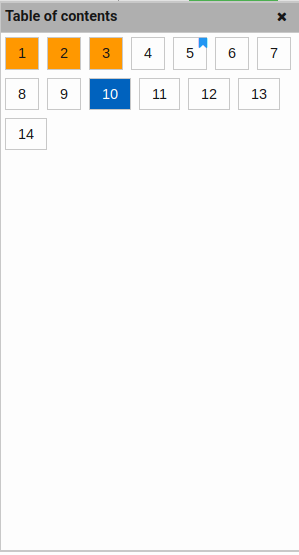
Click the Index button in the toolbar to open the Paper Index panel on the left side of the screen.
The index shows:
- Section headings (coloured separator rows) when the paper has sections
- Question buttons numbered 1, 2, 3, … for each question
Question buttons use color coding to show status at a glance:
| Color | Meaning |
|---|---|
| Highlighted / filled | The question you are currently on |
| Yellow background | The question has been answered |
| No highlight | Not yet visited or answered |
| Small blue bookmark icon in the top-right corner of the button | This question is bookmarked |
Click any button to jump directly to that question (unless the paper restricts navigation).
# Pausing the Test
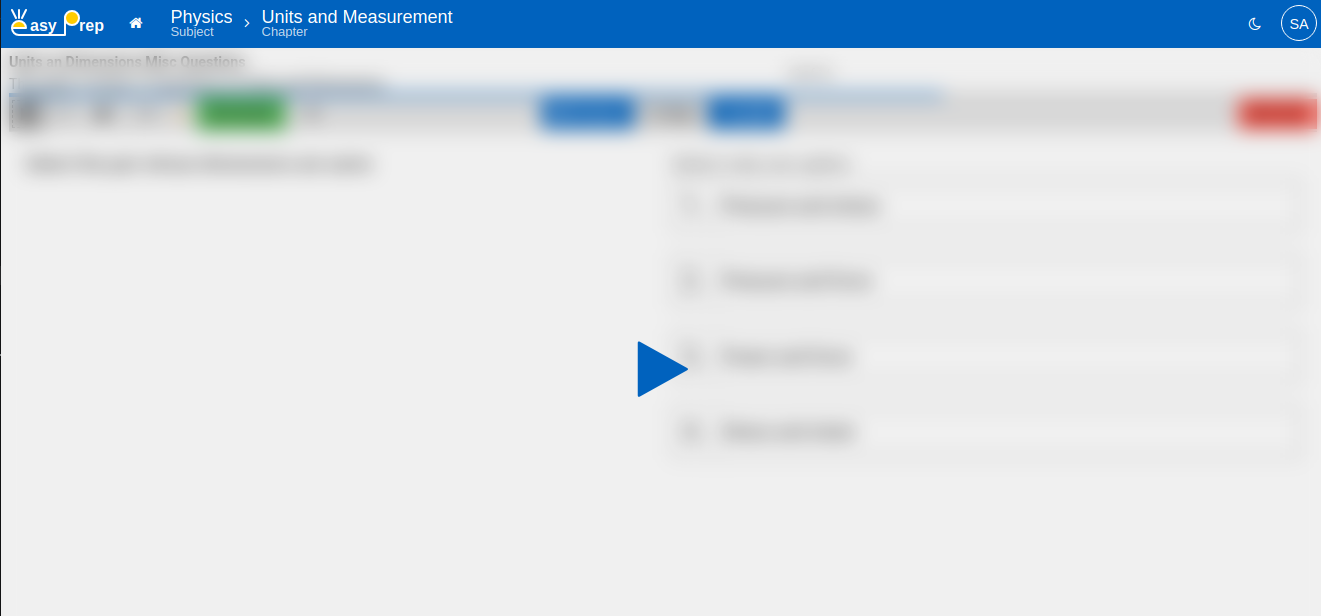
Click the Pause button in the toolbar to pause the test. While paused:
- The screen is blurred so no question content is visible
- The test timer is also paused (time does not count against you while paused)
To resume, click the large Play (▶) button in the centre of the screen.
# Submitting the Test
# Exiting and submitting
Click the Exit button in the toolbar to finish the test. Depending on the paper's configuration:
- A confirmation dialog may appear asking you to confirm submission
- A warning may appear if you have unanswered questions
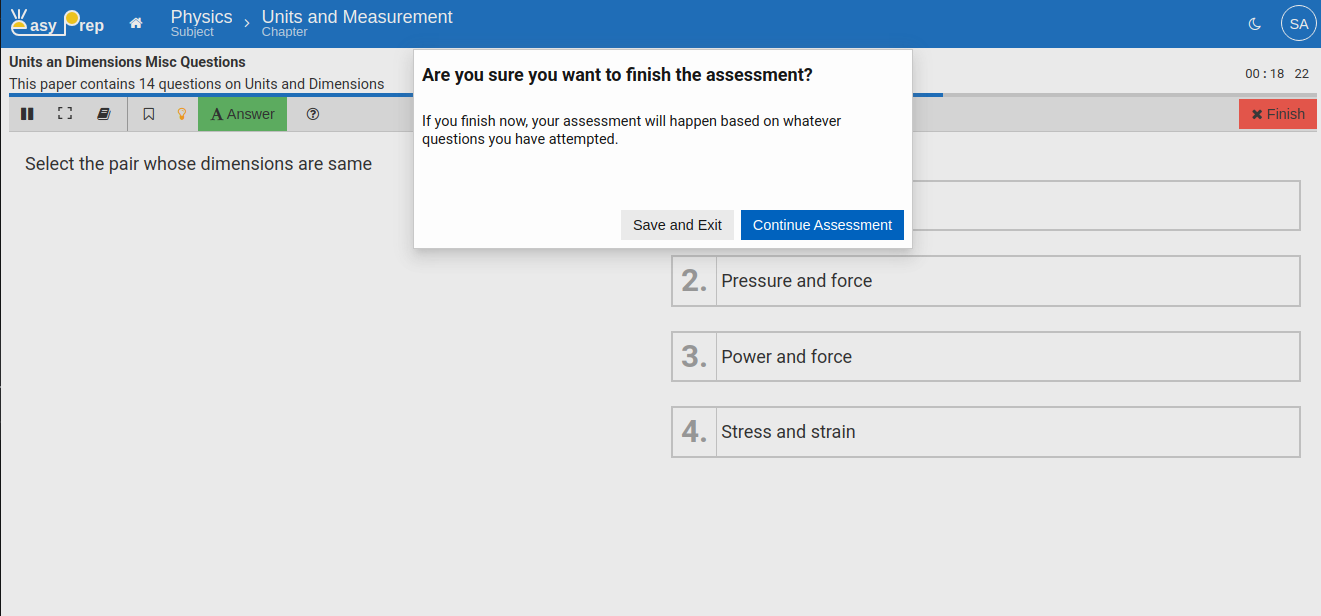
After confirming, the test is submitted and you are taken straight to your Report Card.
# Automatic submission
If the paper has a time limit with auto-submit enabled, the test is submitted automatically when time runs out. A full-screen overlay appears first — click Save and Exit to confirm submission.
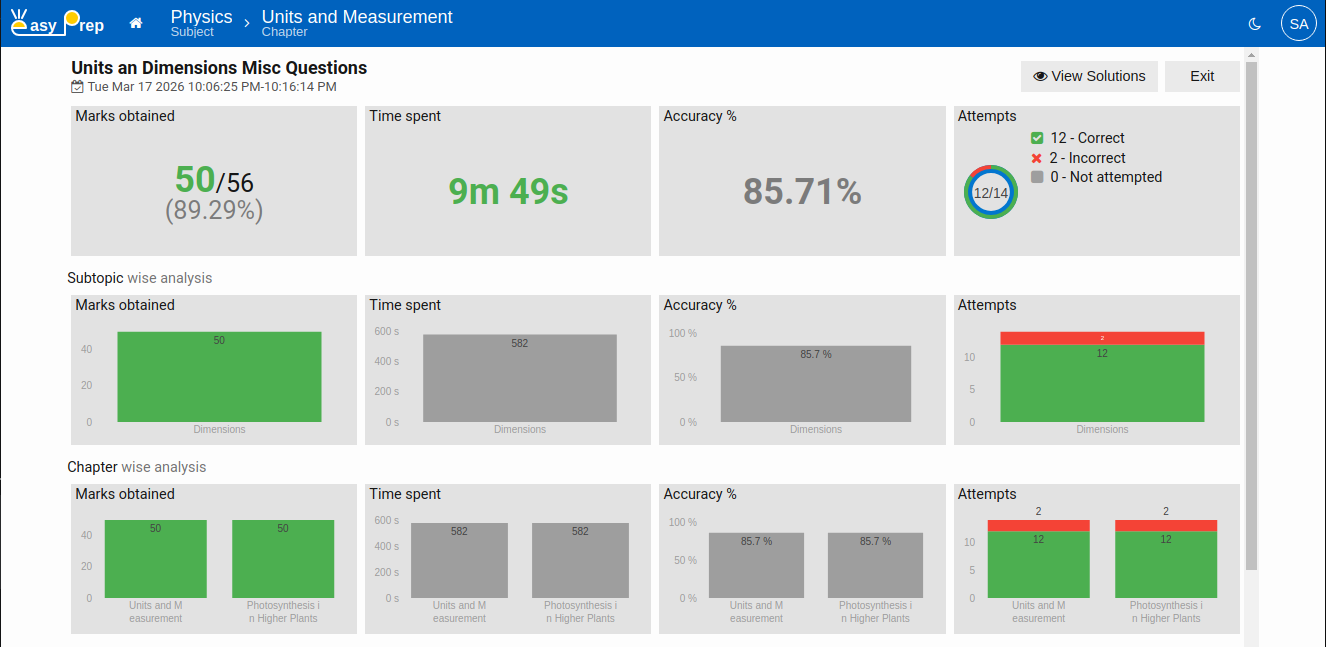
# After the Test — Report Card
After submitting, you are taken automatically to the Report Card for that attempt. You can also reach it later from the Practice tab by clicking the Report Card button on a paper.
The Report Card shows:
- Paper title and the date/time you took it
# Summary tiles
| Tile | What it shows |
|---|---|
| Marks obtained | Your score and the total possible marks |
| Time spent | How long you spent on the paper |
| Accuracy % | The percentage of your answered questions that were correct |
| Attempts | A breakdown of Correct / Incorrect / Not attempted / Partially correct questions, shown as a chart and a legend |
# Topic-wise analysis
Below the summary tiles, the report shows tag-group-wise analysis charts. For example, if the paper is tagged by Subject, you will see four charts per subject — Marks, Time spent, Accuracy %, and Attempts — so you can see which topics you are strongest and weakest in.
# Actions from the Report Card
Two buttons appear at the top of the Report Card:
| Button | What it does |
|---|---|
| View Solutions | Opens the Solutions page where you can review every question and see correct answers and explanations |
| Exit | Returns to the Topic Summary page |
# After the Test — View Solutions
Click View Solutions from the Report Card (or from the Practice tab) to open a question-by-question solution review.
The Solutions page shows each question in sequence. For each question you can see:
- The question text
- Your selected answer (highlighted)
- The correct answer (highlighted if different from yours)
- Whether your answer was correct, incorrect, or not attempted
- The explanation for the correct answer, if one was provided
Use the Previous and Next buttons to move between questions. Enable the Hide Correct filter to skip questions you got right and focus only on the ones you got wrong.
Back to: Student Home Page