Step 1 — Create Tag Groups
Define the classification dimensions (Subject, Difficulty, etc.) that tags and questions will be organised under.
Tag Groups are the first thing to set up in your Tag Catalog. They define the dimensions — the column headings — that every tag, question, and assessment will be classified by. You cannot create tags until you have at least one Tag Group.
# Navigating to Tag Groups
- Log in to the admin panel.
- In the left navigation, open Tag Catalog.
- Click Tag Groups.
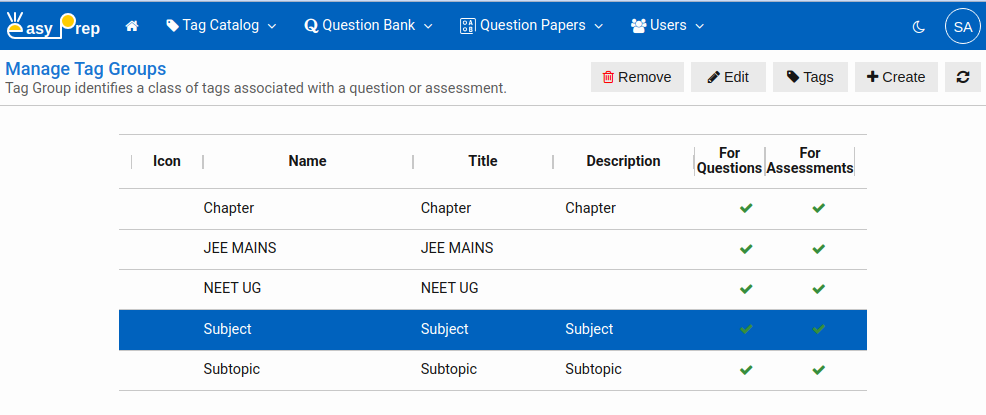
The Manage Tag Groups screen appears:
# Viewing the Tag Groups List
The list displays all Tag Groups available to your institute — both platform-provided groups and groups you have created. The columns are:
| Column | Description |
|---|---|
| Icon | The optional icon image associated with the group. |
| Name | The unique system name of the group. |
| Title | The human-readable label shown in forms and pickers. |
| Description | A short summary used in tooltips. |
| For Questions | A tick (✓) if the group's tags can be applied to questions. |
| For Assessments | A tick (✓) if the group's tags can be applied to assessments/question papers. |
Click any row to select it. The toolbar buttons — Edit, Remove, and Tags — become active for the selected group. Double-click a row to view all the Tags for that group.
# Creating a Tag Group
- Click Create in the toolbar.
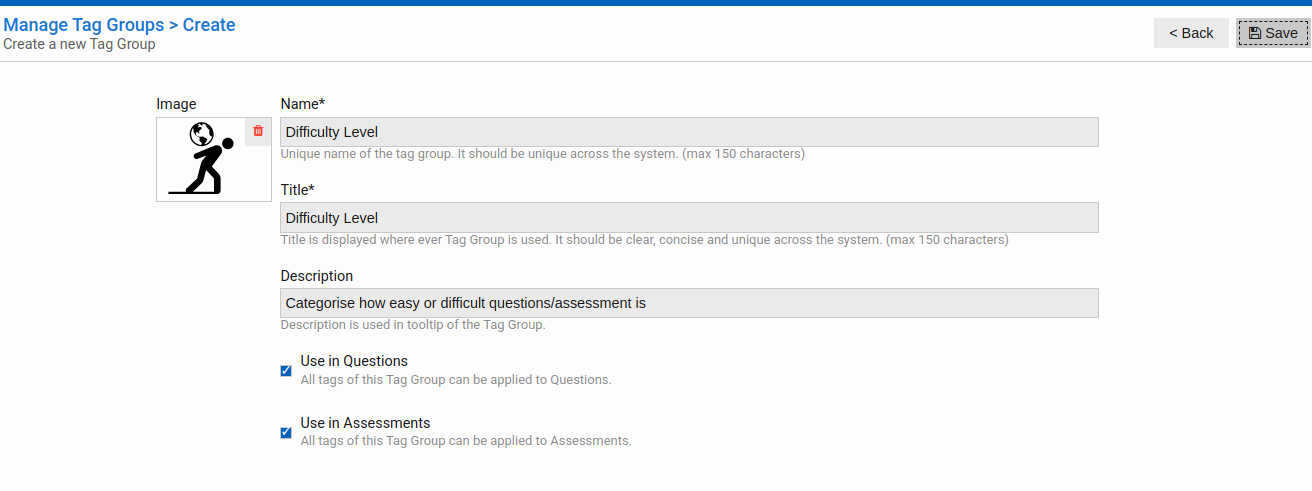
- The Create form opens.
Icon (optional)
Click the icon drop area to upload or paste a small image (up to 72 × 72 px). The icon appears next to the group name in tag pickers and lists.
Name (required)
A short, unique identifier for the group (e.g., subject, difficulty-level). Must be unique across your account and cannot match any platform-provided group name. Maximum 150 characters.
Title (required)
The human-readable label shown in forms, filters, and reports (e.g., Subject, Difficulty Level). Defaults to the Name if left blank. Maximum 150 characters.
Description (optional)
A brief tooltip note (max 150 characters) to help question setters understand the group's purpose.
Use in Questions
When checked, tags from this group can be applied to questions in the question bank. Enabled by default.
Use in Assessments
When checked, tags from this group can be applied to assessment papers. Enabled by default.
Click Save. If the name is already taken, an error message appears so you can choose a different name.
Name of the Tag Group can be changed later on. When you change, it should be unique.
# Editing a Tag Group
Difficulty Level
- Select the group in the list.
- Click Edit in the toolbar (or double-click the row).
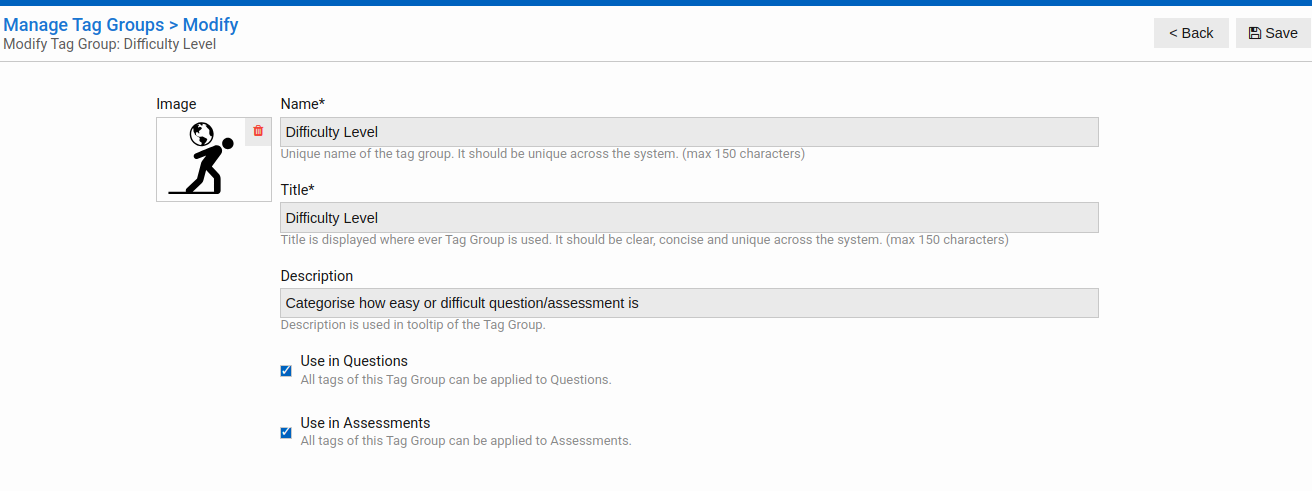
- The Modify form opens pre-filled with the current values.
- Update any fields and click Save.
# Viewing the Tags Inside a Group
- Select a Tag Group in the list.
- Click Tags in the toolbar.
You are taken directly to the tag list filtered to that group.
# Removing a Tag Group
A Tag Group can only be removed when it no longer has any tags, hierarchies, questions, or assessments associated with it. The system checks this automatically.
- Select the group and click Remove.
- The Remove screen shows a usage summary.
If the group is still in use, you will see a table like this:
| Resource | Count |
|---|---|
| Hierarchies | 3 |
| Tags | 12 |
| Questions | 0 |
| Assessments | 0 |
Clear all associations first, then return to remove the group.

Once all counts are zero, type the exact group name in the confirmation field and click Remove.

# Next Step
Once your Tag Groups are in place, go to Step 2 — Create Tags to populate each group with its values.