Step 3 — Create Tag Hierarchies
Connect tags across groups into parent-child relationship to enable guided filtering, intelligent paper generation and drill-down analytics.
A Tag Hierarchy connects tags from different Tag Groups into a parent-child tree. For example, you can define that Thermodynamics (a Chapter tag) belongs under Physics (a Subject tag), and that Laws of Thermodynamics (a Topic tag) belongs under Thermodynamics. This makes large tag catalogs navigable and enables EasyPrep to guide users intelligently when tagging questions or building papers.
Tag Hierarchies are the third and final step of Tag Catalog setup. You need Tag Groups and Tags to already exist before creating a hierarchy.
Tip: If you are starting from scratch with a large syllabus, skip Steps 1 and 2 and go straight to uploading a CSV file. A single CSV file creates Tag Groups, Tags, and the Hierarchy all in one go.
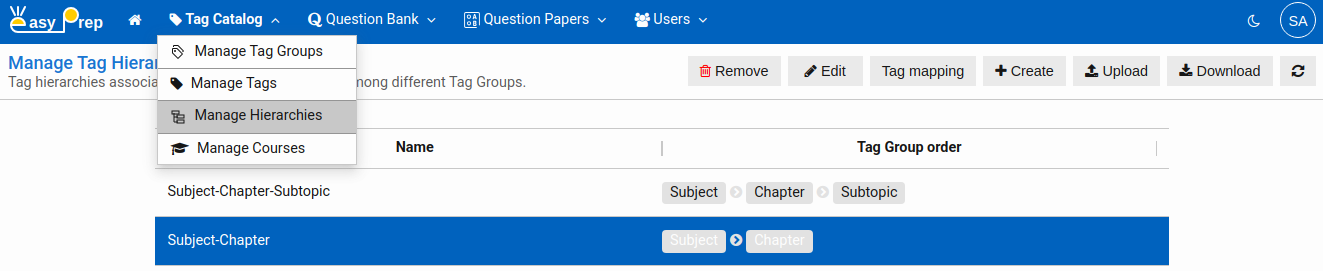
# Navigating to Tag Hierarchies
- Log in to the admin panel.
- In the left navigation, open Tag Catalog.
- Click Tag Hierarchies.
# Creating a Hierarchy Manually
Creating a hierarchy manually is a two-step process.
# Step A — Define the Hierarchy
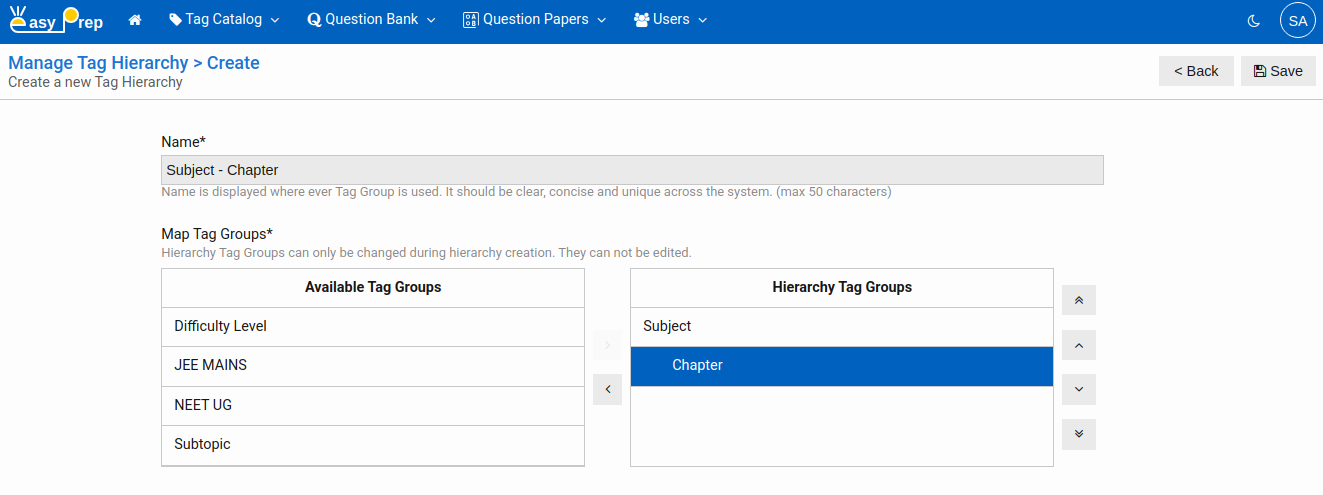
- Click Create in the toolbar.
- The Create form opens with two columns:
- Available groups (left) — all Tag Groups you can add.
- Hierarchy groups (right) — the groups that form the levels of this hierarchy, in order from top (most general) to bottom (most specific).
- Enter a Name for the hierarchy (e.g., Subject-Chapter-Topic). Maximum 150 characters.
- Select a group in the left column and click → to move it into the hierarchy.
- Repeat for each additional group, working from top level to bottom level.
- To reorder groups on the right, select one and use the up, down buttons in the right.
- To remove a group from the hierarchy, select it on the right and click ←.
- Click Save.
At least two Tag Groups are required.
Once hierarchy is created, its tag groups can not be modified.
# Step B — Configure Tag Mappings
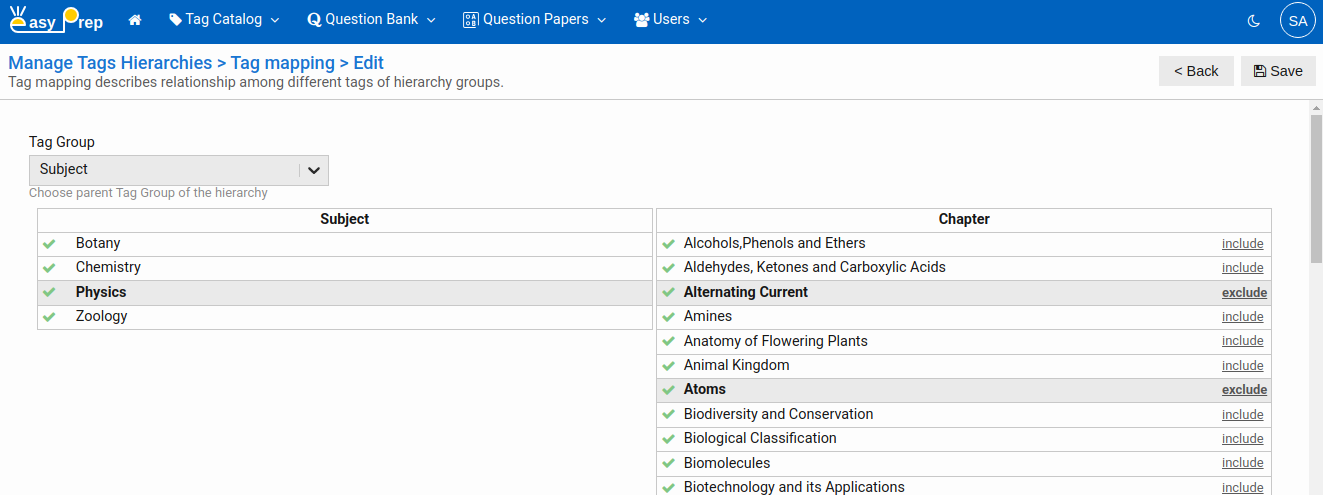
After saving, select the hierarchy in the list and click Tag mapping in the toolbar.
- Use the Parent group dropdown to choose a level pair to configure (e.g., Subject → Chapter).
- The left column shows all parent tags (e.g., all Subject tags).
- Click a parent tag (e.g., Physics) to select it.
- The right column shows all child-level tags — click on include/exclude link for the ones that belong under this parent.
- Repeat for every parent tag.
- For hierarchies with more than two levels, switch to the next level pair in the dropdown (e.g., Chapter → Topic) and repeat.
- Click Save to store all mappings.
# Uploading a Hierarchy from a CSV File
This is the fastest way to set up a large syllabus. A single CSV file can create Tag Groups, Tags, and the full Hierarchy all at once.
# CSV File Format
| Rule | Detail |
|---|---|
| Each column | One Tag Group. The column header is the Tag Group name. |
| Each row | One complete path from the top tag down to the leaf tag. |
| Column headers | Must be unique. Must not start with $ or .. |
| Maximum rows | 5,000 |
Example:
Subject,Chapter,Topic
Physics,Thermodynamics,Laws of Thermodynamics
Physics,Thermodynamics,Heat Transfer
Physics,Optics,Reflection
Chemistry,Organic Chemistry,Hydrocarbons
This single file creates the Tag Groups Subject, Chapter, Topic (if they do not exist), all the tags listed, and a hierarchy linking them.
# Uploading
- Click Upload in the toolbar.
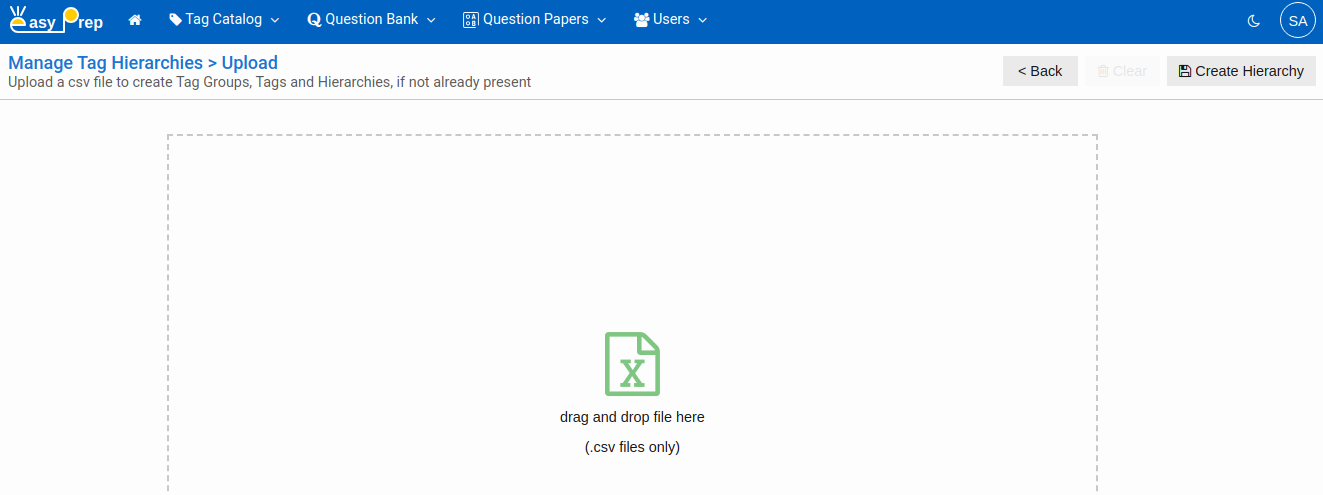
- Drag and drop your CSV onto the drop zone, or click to browse.
- A preview grid appears — review it to check the data looks correct.
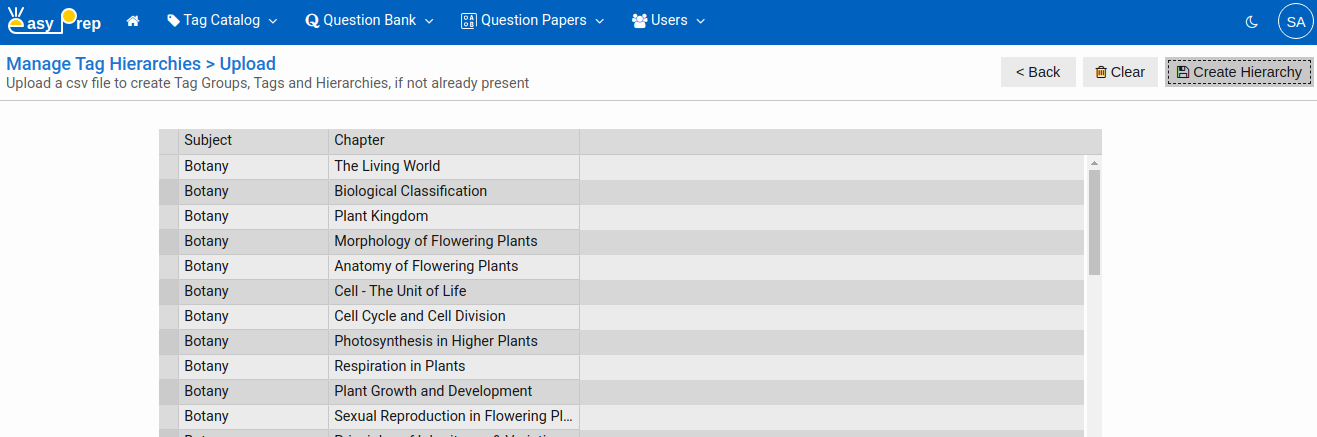
- Click Create Hierarchy to import.
Any file errors (duplicate columns, too many rows, invalid header names) are shown in the preview before you can proceed. Click Clear to discard and try a different file.
# Downloading a Hierarchy
You can export any hierarchy to CSV at any time — useful for editing in a spreadsheet or taking a backup.
- Select the hierarchy in the list.
- Click Download.
- A file named
hierarchy.csvis saved to your device in the same format as the upload format.
# Editing a Hierarchy
- Select the hierarchy and click Edit.
- Rename it
- Click Save.
Once hierarchy is created, its tag groups can not be modified.
# Removing a Hierarchy
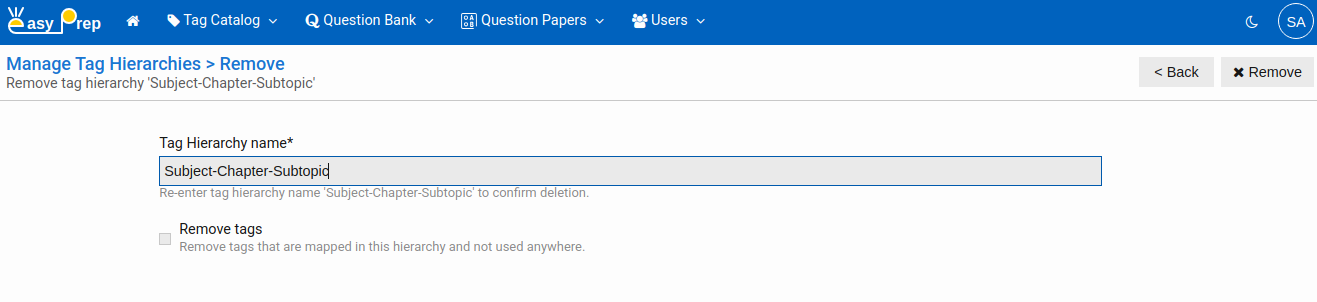
- Select the hierarchy and click Remove.
- The Remove screen opens. Before clicking Remove, decide what to do with the tags:
| Option | What happens |
|---|---|
| Remove tags unchecked (default) | Only the hierarchy structure is deleted. Tags remain in their groups. |
| Remove tags checked | The hierarchy is deleted, and tags that are not used elsewhere are also deleted. Platform-provided tags are never deleted. |
- Type the exact hierarchy name in the confirmation field and click Remove.
# Your Tag Catalog Is Ready
With Tag Groups, Tags, and Hierarchies in place, your Tag Catalog is set. You can now:
- Add questions to the question bank and tag them as you go.
- Build assessment papers with syllabus-based distribution.
- View analytics broken down by subject, chapter, difficulty, and any other dimension you configured.