Creating a Question Paper
Step-by-step guide to building a question paper — adding sections, question sets, and paragraphs, configuring scoring and timers and tagging.
This guide walks you through building a question paper from start to finish. The editor is organized into four tabs so you can work on each aspect of the paper separately.
# Step 1 — Open the Paper Editor
Navigate to Question Papers from the main menu. Click New Question Paper in the top-right corner.
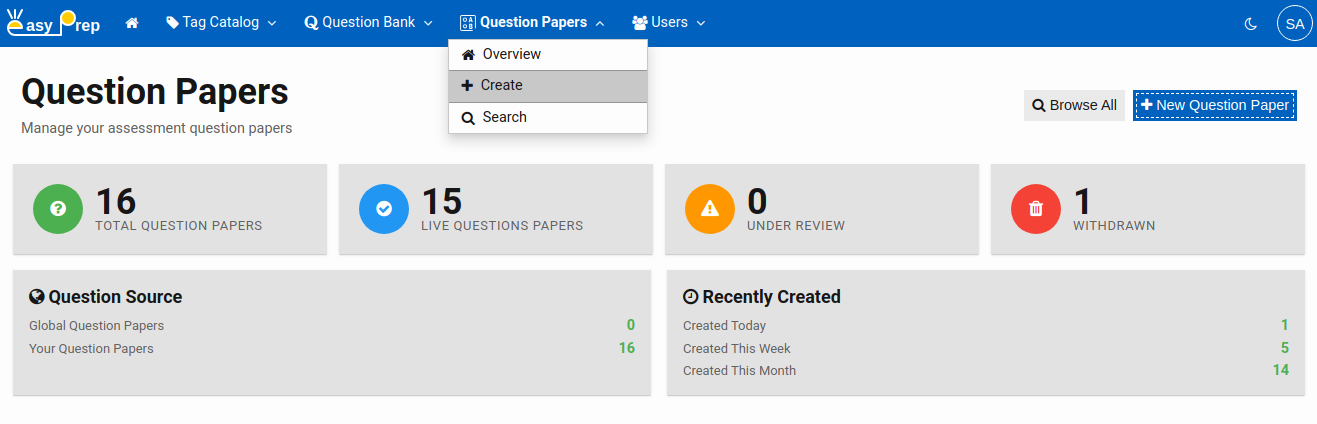
The editor opens on the Structure tab, which is where you will define the paper's title and its content.
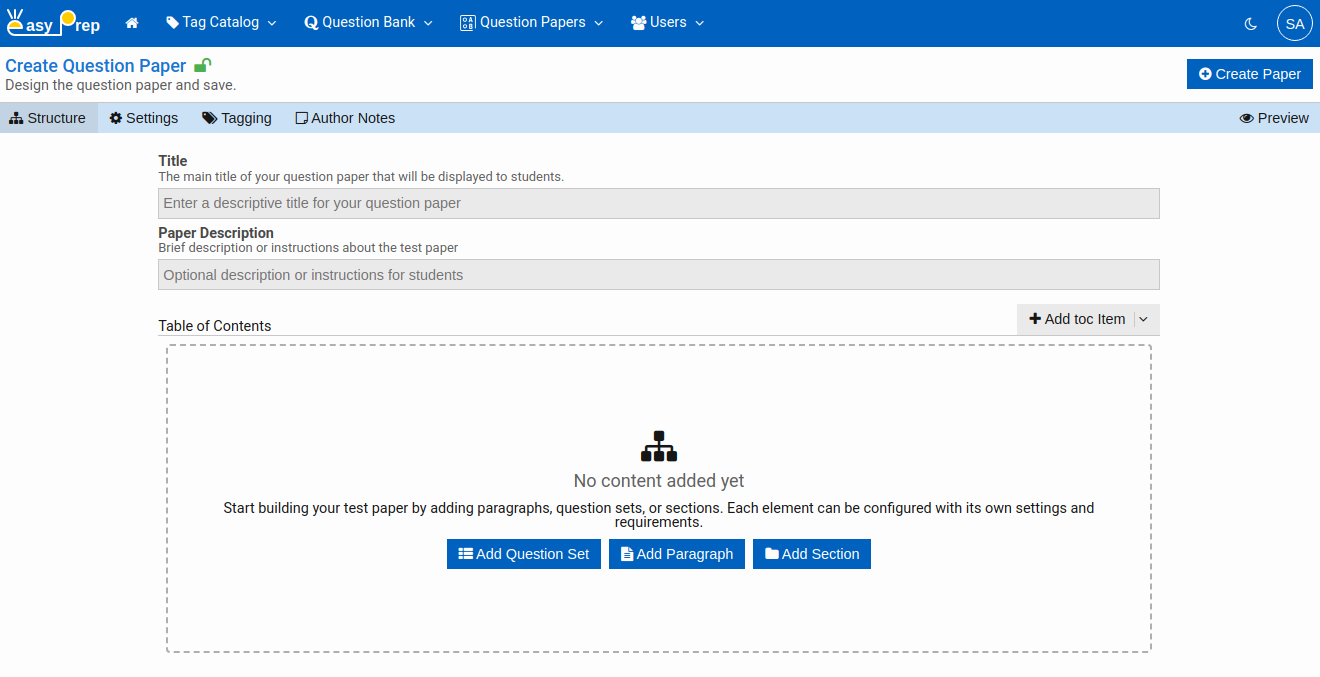
# Step 2 — Set the Title and Description
At the top of the Structure tab:
- Title — the name of the paper as students will see it (required)
- Paper Description — optional subtitle or instructions shown to students at the start
# Step 3 — Build the Table of Contents
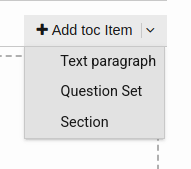
Below the title fields is the Table of Contents — the structure of your paper. Click Add ToC Item to start adding content. There are three types of items:
# Adding a Section
A Section groups related question sets or paragraphs into a named part. For example, a paper might have sections for "Physics", "Chemistry", and "Biology".
- Click Add ToC Item → Section. A new section entry appears.
- Click the section to open its editor panel.
- Fill in the Title (and optional Subtitle).
- Optionally configure a time limit for the section:
- Toggle Enable time limit
- Set the duration
- Choose whether it is a soft limit (students can exceed it, but the extra time is deducted from the overall test time) or a hard limit (the section ends when time is up)
- Toggle Show timer to display a visible countdown dial for this section
Section Detail:
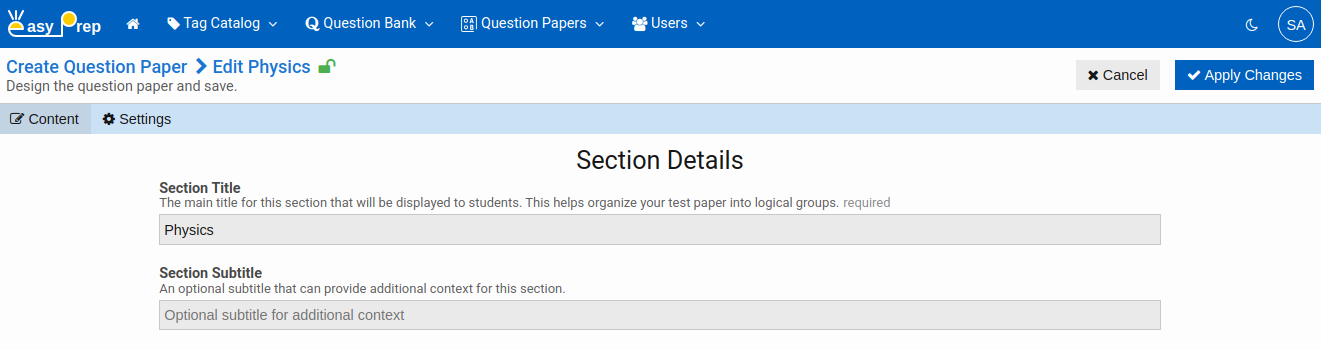
Section Configuration:
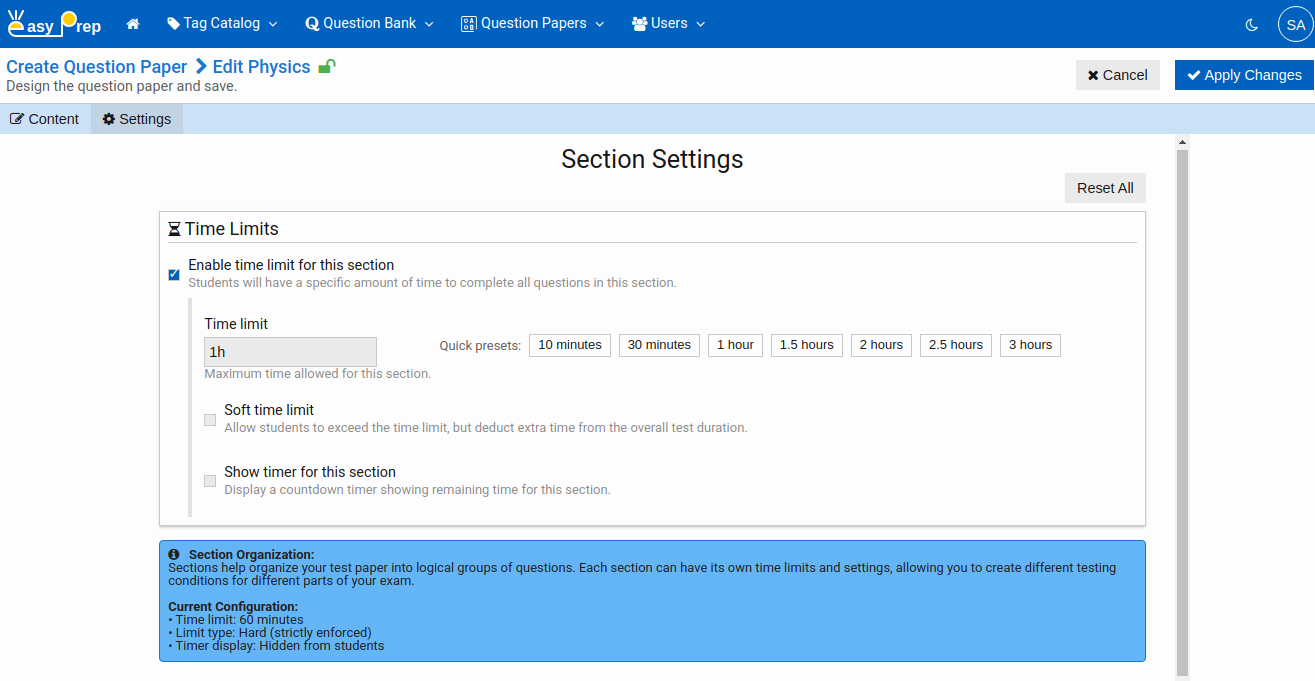
Once a section is created, you can add Question Sets and Text Paragraphs inside it.
# Adding a Question Set
A Question Set is where the actual questions go. You can add multiple question sets — each is an independent scored unit with its own timing and shuffle settings.
- Click Add ToC Item → Question Set (or add one inside a Section).
- The question set editor has four tabs: Questions, Scores, Settings, and Metadata.
# Questions tab
Click Add Questions to open a question picker dialog. This shows the full Question Bank search panel with filtering — you can search by tags, type, status, source, and more.
Select one or more questions and click Add Questions to include them in this set.
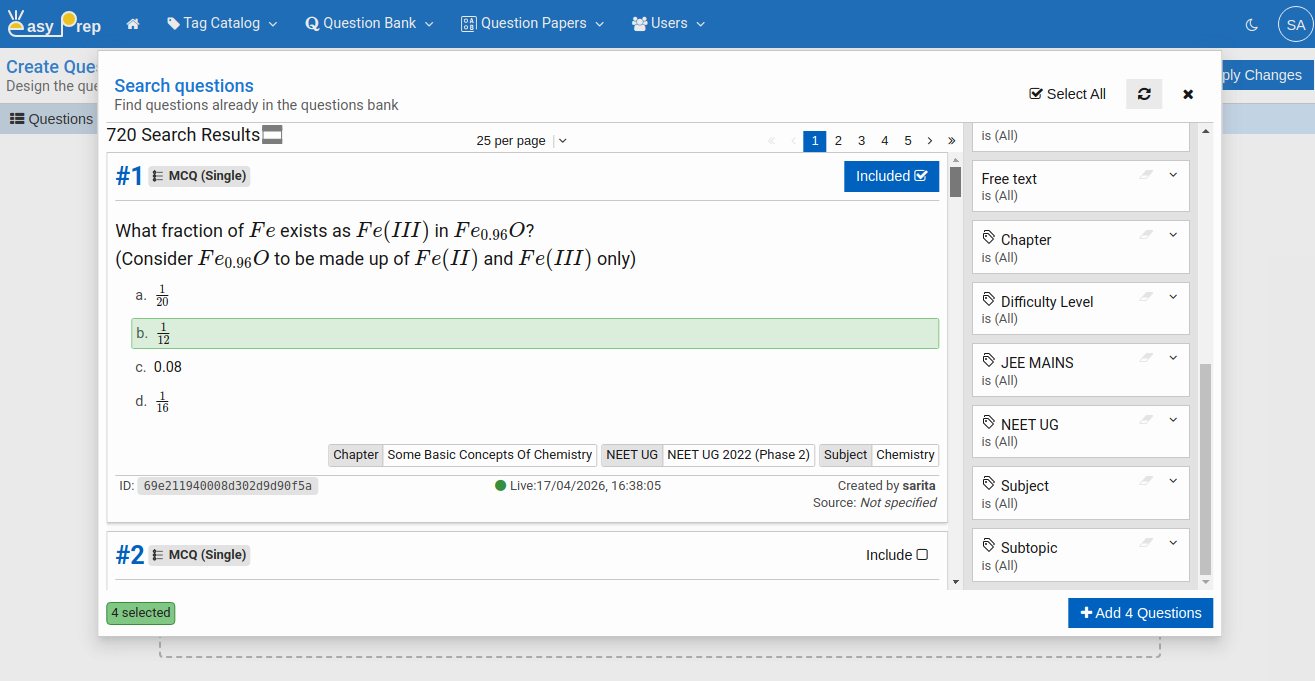
Once the questions are added, they are available in the question set:
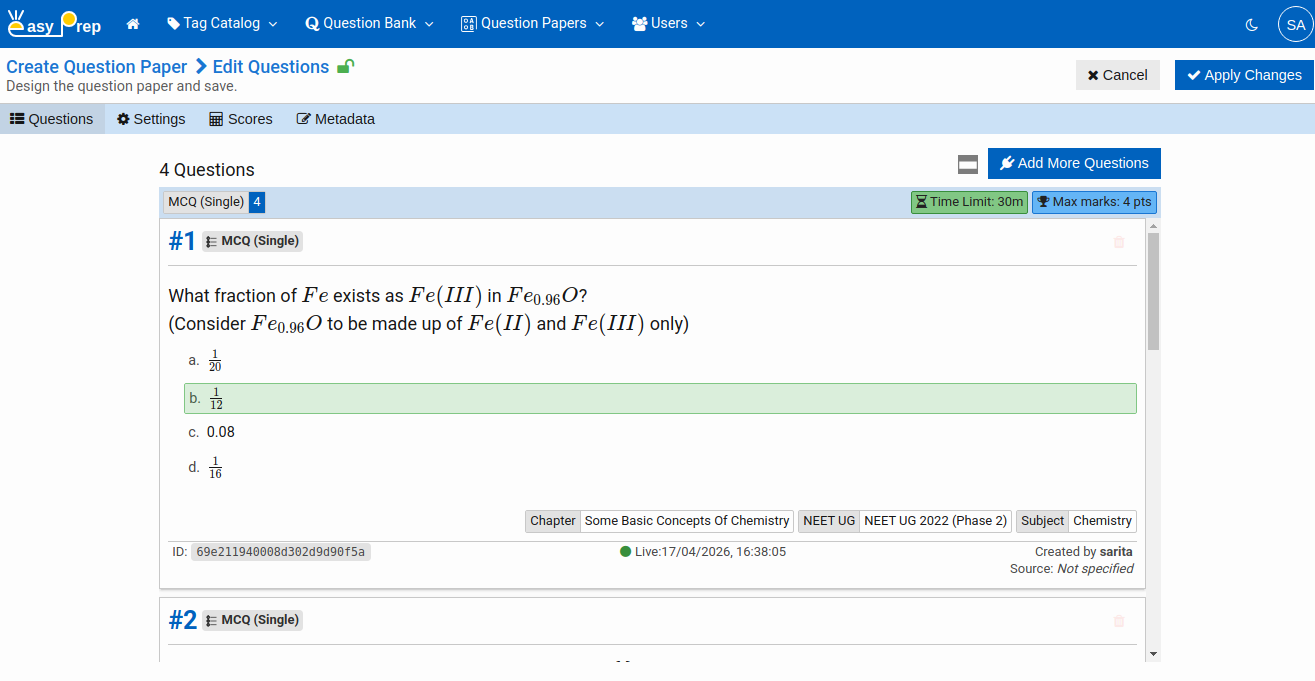
# Settings tab
Configure timing and shuffle options for this question set.
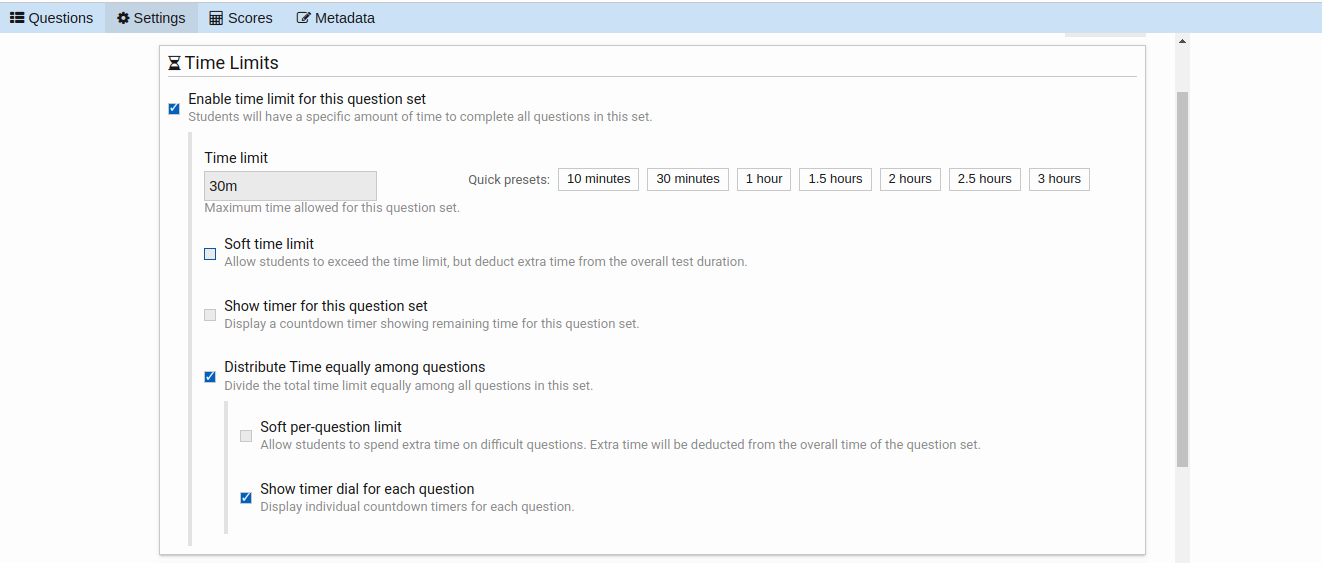
Time Limits
- Enable time limit for this question set — restrict how long students have to complete all questions in this set.
When a time limit is enabled:
| Setting | Description |
|---|---|
| Time limit | The maximum time allowed for this question set. |
| Soft time limit | If checked, students can exceed the time limit; extra time is deducted from the overall test duration. If unchecked, the question set locks when time is up (hard limit). |
| Show timer for this question set | Display a countdown showing remaining time for this question set. This timer is additional to the paper timer |
| Distribute time equally among questions | Divide the total time limit equally among all questions so each question gets a fixed slot. |
When per-question time distribution is enabled, two additional sub-options appear:
| Setting | Description |
|---|---|
| Soft per-question limit | Students can spend extra time on difficult questions; the extra time is taken from the question set's remaining pool. When the question set itself has a soft limit, this is also automatically soft. |
| Show timer dial for each question | Display an individual countdown timer on each question screen. This is additional to all other timers. |
Presentation
| Setting | Description |
|---|---|
| Shuffle question order | Present questions in a random order to each student to minimize the chance of copying. This is also useful in mock test when a student is giving same mock test multiple times. |
| Shuffle answer options | Randomize the order of multiple-choice options for each question. |

# Scores tab
Choose how this question set is scored:
| Scoring method | How it works |
|---|---|
| Practice Mode | Questions in this set do not contribute to the student's score. Useful for warm-up exercises or reading comprehension question sets. |
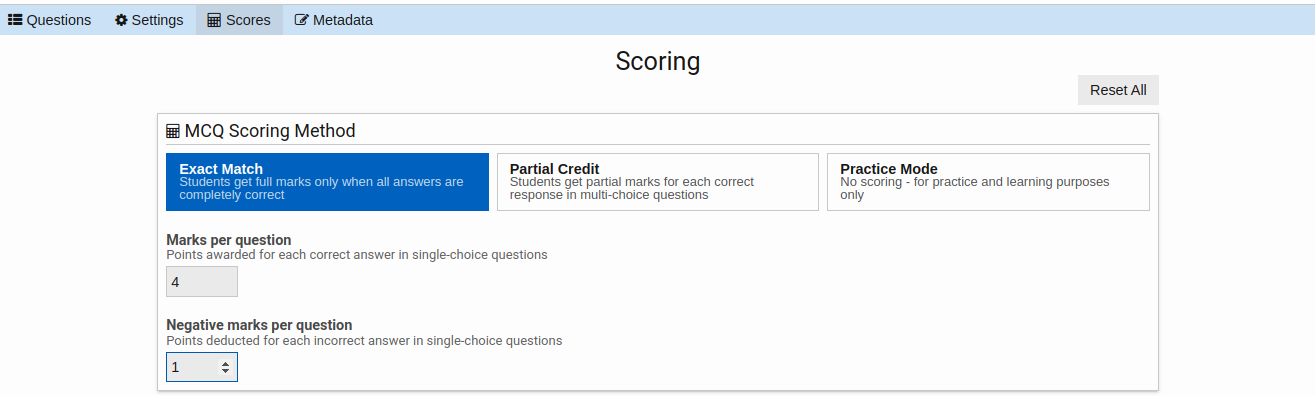
| Exact Match | The student receives full marks only when all answer choices are correctly selected. A single wrong selection gives negative marks for that question. |
| Partial Credit | For multi-choice questions, marks are awarded per correct choice selected and deducted per incorrect choice selected. |
After selecting the scoring method, fill in the marks fields (not shown for Practice Mode):
| Scoring method | Positive marks field | Negative marks field |
|---|---|---|
| Exact Match | Marks per question | Negative marks per question |
| Partial Credit | Marks per correct choice | Negative marks on selecting a wrong choice |
Set negative marks to 0 if no penalty applies.
The below example shows NEET-UG style scoring method:
# Metadata tab
Optionally give the question set a title and subtitle.
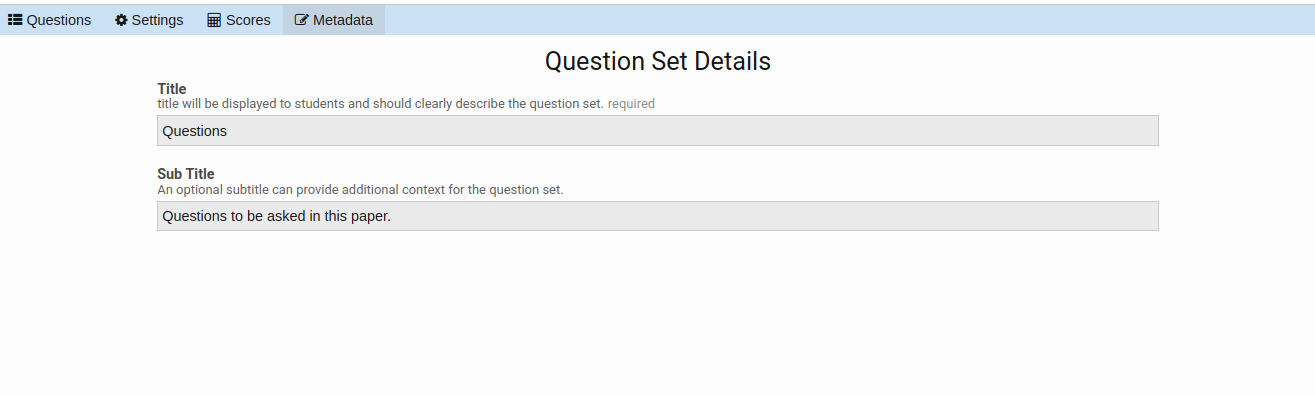
Once you are done with the changes in the Question Set, Click Apply Changes
# Adding a Text Paragraph
A Text Paragraph displays a block of text to students — instructions, a reading passage, or context for the questions that follow.
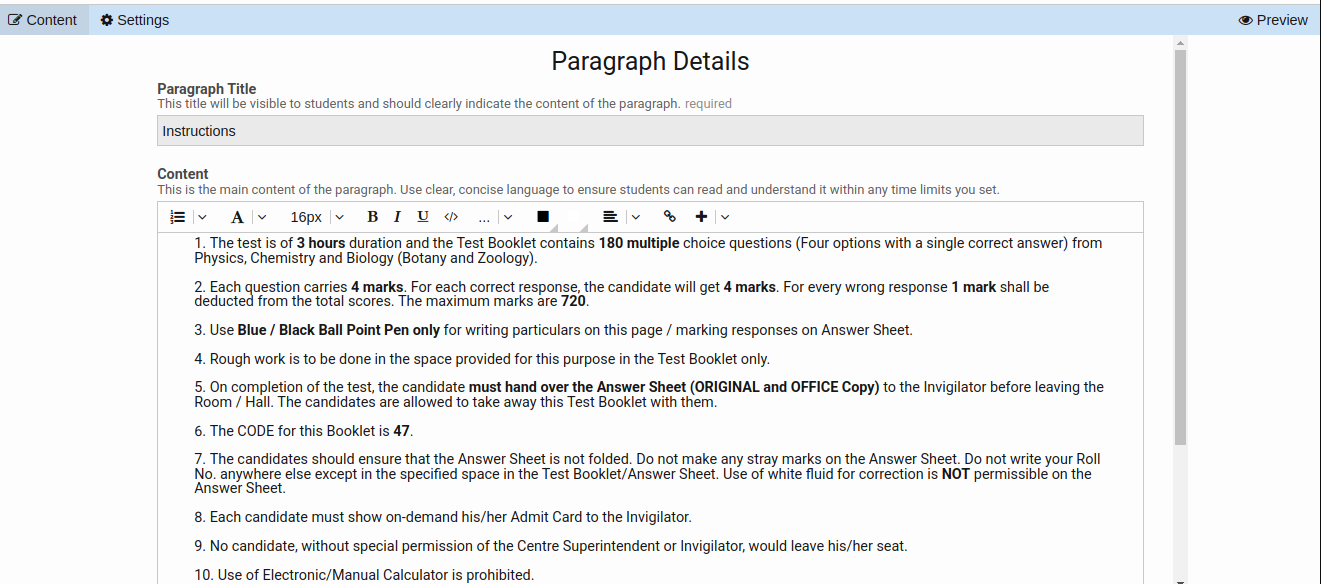
- Click Add ToC Item → Text Paragraph.
- Enter the Title (required) — this is shown to students above the paragraph.
- Write the Content in the rich-text editor — supports formatting such as bold, italics, lists, and images.
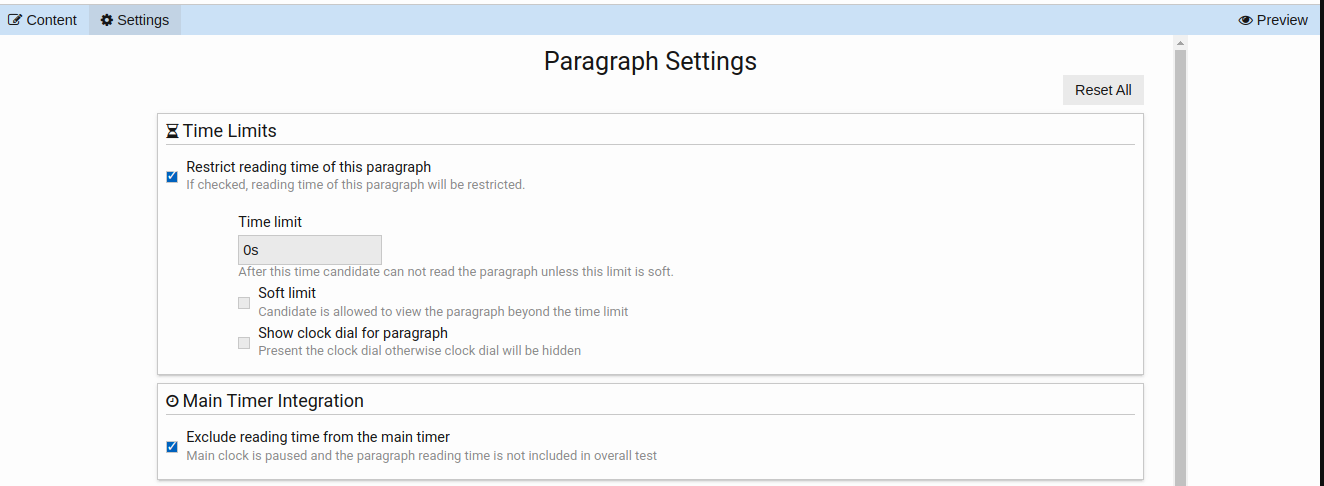
Click the Settings tab within the paragraph panel to configure timing behavior:
Reading Time
- Restrict reading time of this paragraph — when enabled, the paragraph is hidden after the time runs out.
When a reading time limit is enabled:
| Setting | Description |
|---|---|
| Time limit | The duration the student has to read this paragraph before it is hidden. |
| Soft limit | If checked, the student can still view the paragraph after time is up. If unchecked, the paragraph is hidden when time runs out (hard limit). |
| Show clock dial for paragraph | Display a visible countdown timer on the paragraph so students can see how much reading time remains. |
Main Timer Integration
- Exclude reading time from the main timer — when enabled, the overall test timer is paused while the student reads this paragraph. The reading time does not count against the total test duration. This is useful for introductory or instruction paragraphs at the start of the paper.
# Step 4 — Configure Paper Settings
Click the Settings tab in the sub-toolbar to configure how the test behaves for students.
# Display options
Control which buttons and elements are visible to students during the test:
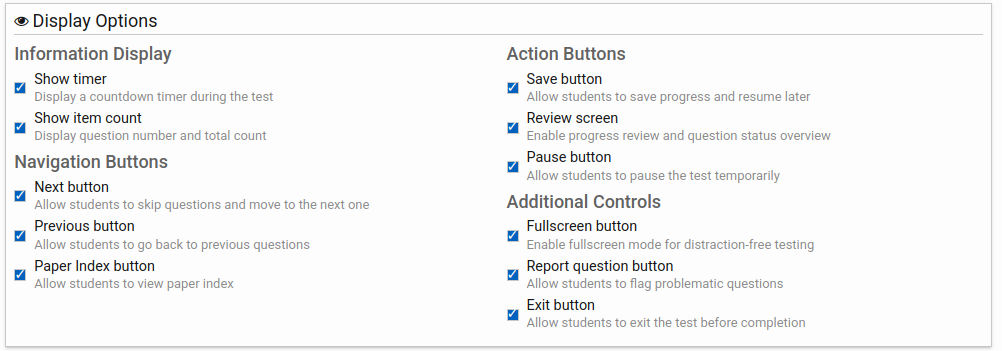
| Setting | Description |
|---|---|
| Show timer | Display a countdown of remaining test time |
| Show item count | Show the current question number and total count |
| Next button | Let students move forward through questions |
| Previous button | Let students go back to answered questions |
| Paper Index button | Let students view the full list of questions and jump to any one |
| Save button | Let students save their progress and resume later |
| Review screen | Let students see a summary of answered / unanswered questions before submitting |
| Pause button | Let students temporarily pause the test |
| Fullscreen button | Enable a distraction-free fullscreen mode |
| Report question button | Let students flag a potentially incorrect question |
| Exit button | Let students exit the test before time is up |
# Time limits
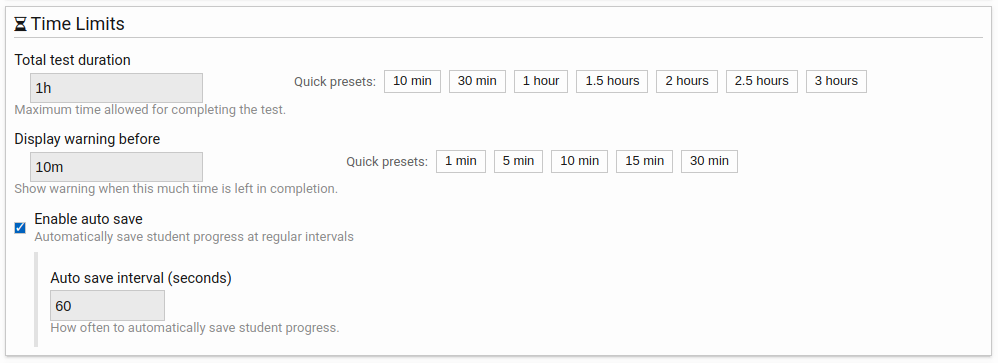
- Total test duration — the maximum allowed time for the entire paper
- Warn before — show a warning notification when this much time remains
- Auto save — automatically save student progress at regular intervals (useful for long exams)
- Auto save interval — how often (in seconds, minimum 30) progress is saved automatically; visible only when Auto save is enabled
# Submission behavior

| Setting | Description |
|---|---|
| Force submit on time over | Automatically submit when the timer reaches zero |
| Allow partial submission | Let students submit even if some questions are unanswered |
| Warn on unattempted questions | Show a warning if a student tries to submit with blank answers |
| Confirmation dialog on submit | Ask the student to confirm before final submission |
Tip: Click Reset All on the Settings tab to restore all settings to their defaults.
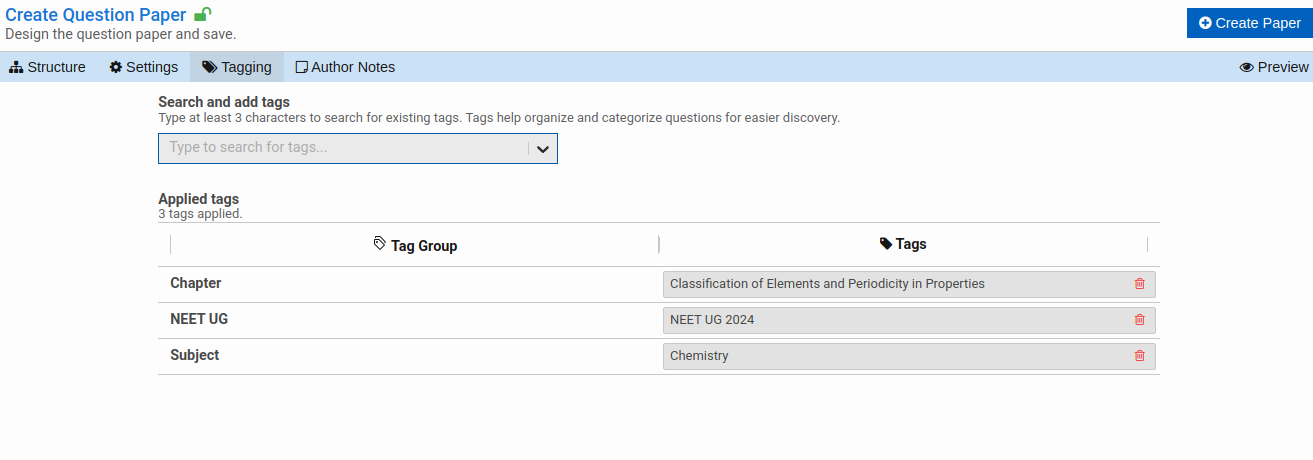
# Step 5 — Add Tags
Click the Tagging tab to assign tags from your Tag Catalog to this paper. Tags let you filter and organize papers by subject, exam type, or any classification you have configured.
# Step 6 — Add Author Notes
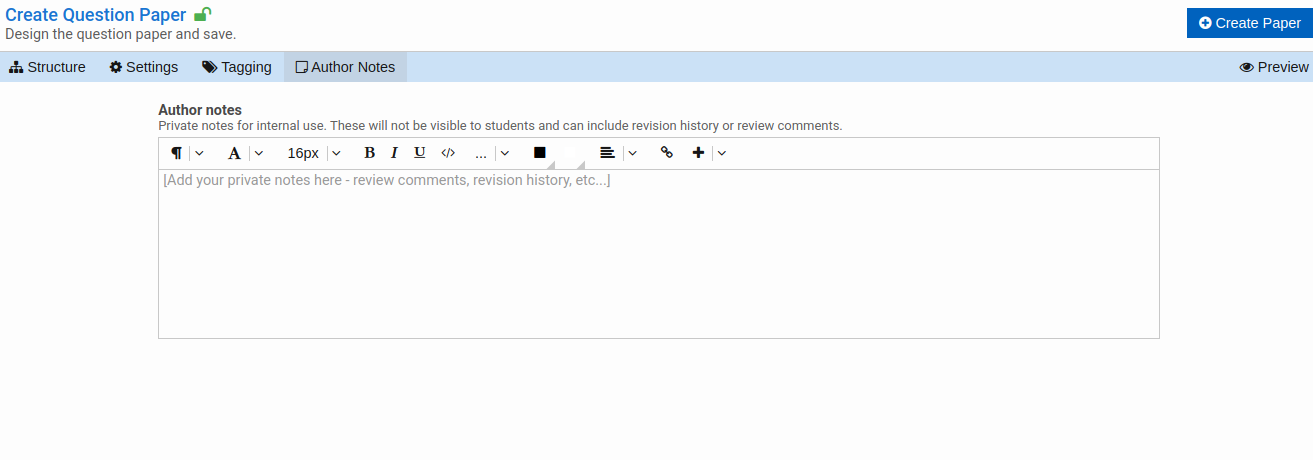
Click the Author Notes tab to leave internal notes about this paper. Notes are not visible to students. Use them to document the paper's purpose, revision history, or reviewer instructions.
# Step 7 — Save the Paper
Click Create Paper (for a new paper) or Save Changes (for an existing one) in the top toolbar. The paper is saved with status Under Review.

Notes: A live paper cannot be edited. If you need to change a live paper, it must be put Under Review first.
# Previewing the Paper
At any point while building, click the Preview button (in the sub-toolbar, on the right side) to see how the paper will look and flow for students before publishing.
Once a paper is created and saved, it is accessible for Search.
Next: Searching Question Papers — find and manage your existing papers.