Question Papers
Publishing a Question Paper
Step-by-step guide to publish a question paper
Once you create a paper, you need to publish it to make it available to your students.
# Step 1 — Open a Paper's Details Page
- Go to Question Papers → Browse All.
- Find the paper whose submissions you want to view and click on it.
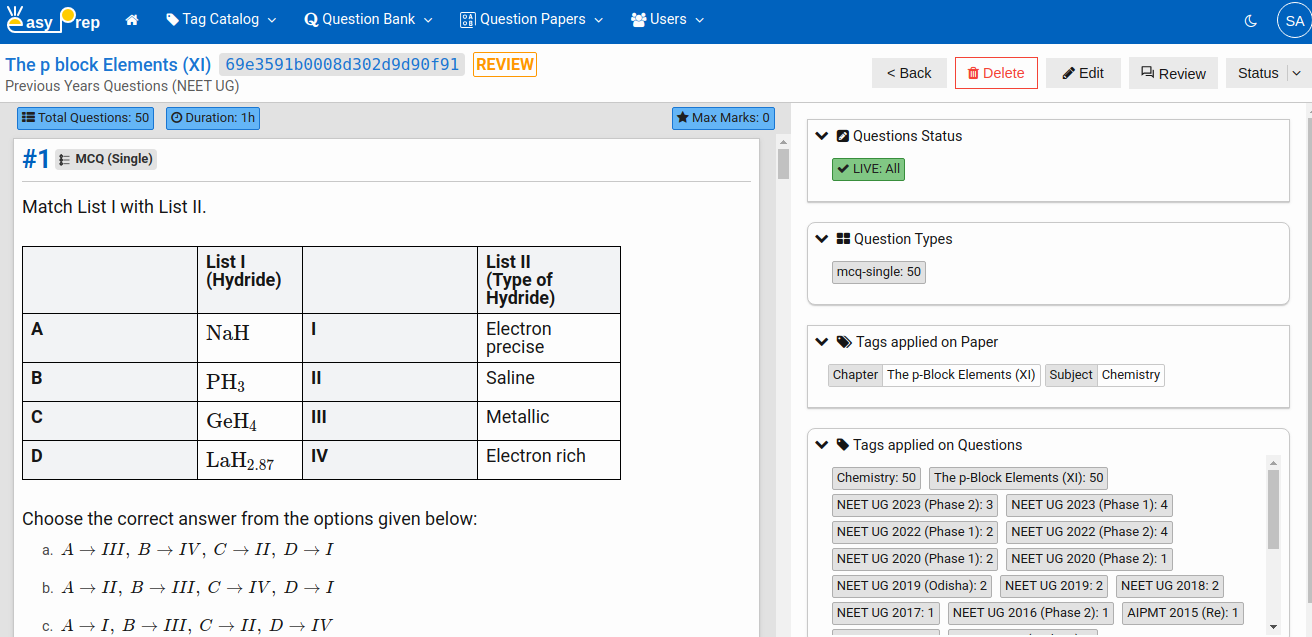
- The Paper Details page opens. It shows the paper's structure, question count, total duration, and maximum marks at a glance.
Navigate to Question Papers from the main menu. Click New Question Paper in the top-right corner.
# Step 2 — Review the question paper and its questions
On the Paper Details toolbar, you will by seeing multiple buttons:
| Button | Action |
|---|---|
| Delete | Delete this question paper. Once deleted, the question paper can not recovered. |
| Edit | Edit this Question Paper. You may wish to review the paper, change scoring, questions, duration, etc. |
| Review | Review the Questions which have Under Review Status and are included in this paper. This does not review the question paper but the questions of this question paper. |
| Status | A dropdown to display all the Question paper status. |
# Step 3 — Publish Paper
Update Question Paper Status by clicking the Status dropdown and selecting Publish menu. Before publishing, you need to ensure:
- All Questions are Live. If not, the question may not be presented to the student.
- Question Paper is correctly tagged. If not, the question paper may not appear in the student's list.