Viewing and Assessing Submissions
Learn how to access candidate submissions for a question paper, understand evaluation statuses, filter attempts, and analyze individual attempt reports.
When a candidate takes a question paper, their responses are recorded as a submission (also called an attempt). This guide explains how to find submissions for a paper, understand their evaluation status, and analyze individual results in detail.
# Step 1 — Open a Paper's Details Page
- Go to Question Papers → Browse All.
- Find the paper whose submissions you want to view and click on it.
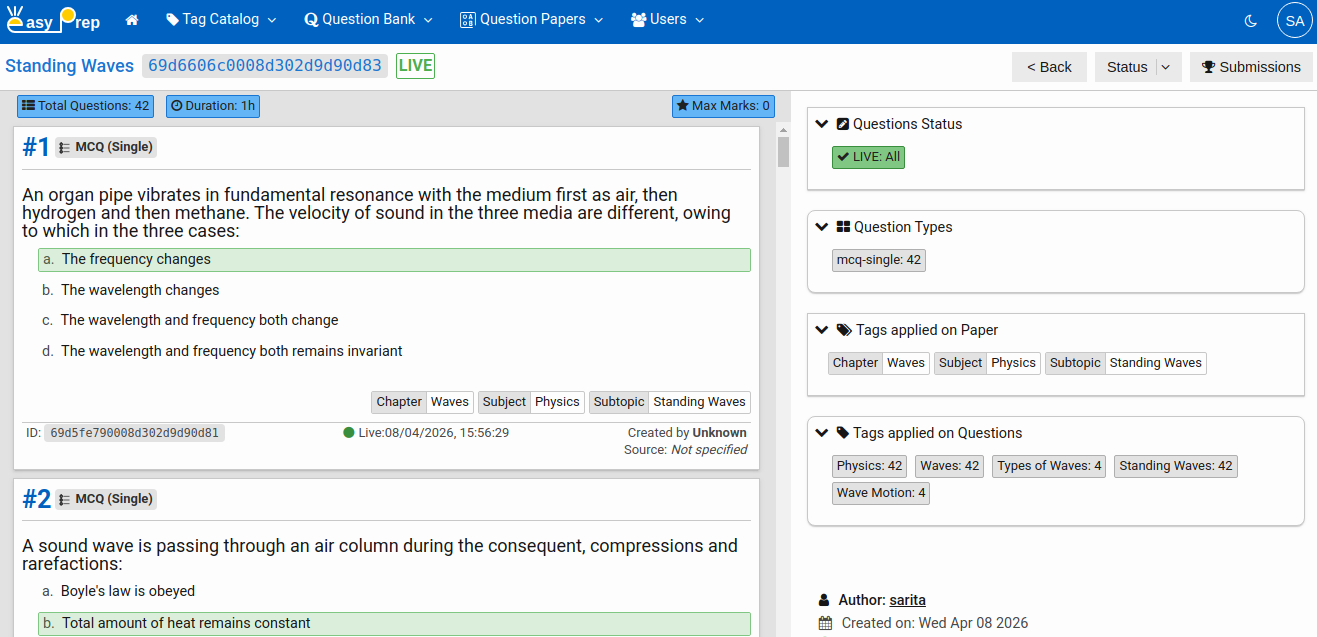
- The Paper Details page opens. It shows the paper's structure, question count, total duration, and maximum marks at a glance.
# Step 2 — Open the Submissions List
On the Paper Details toolbar, click Submissions. This opens the Candidate Attempts page for that paper.
Note: Submissions are available ONLY for the published paper.
# The Submissions Page
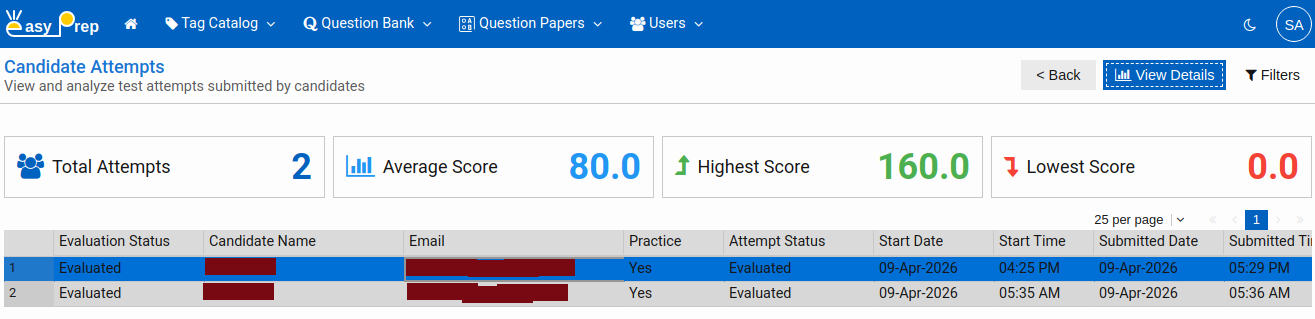
The Candidate Attempts page shows all attempts made for the selected paper, sorted by most recent first.
# Summary statistics
At the top of the page, four tiles show an at-a-glance overview of all attempts:
| Tile | What it shows |
|---|---|
| Total Attempts | How many times the paper has been attempted |
| Average Score | The mean score across all submitted attempts |
| Highest Score | The best score achieved |
| Lowest Score | The lowest score recorded |

# The Submissions Grid
Below the statistics, a grid lists every attempt with the following columns:
| Column | Description |
|---|---|
| Evaluation Status | Whether the attempt has been evaluated (see below) |
| Candidate Name | The name of the candidate who took the test |
| The candidate's email address | |
| Practice | "Yes" if the attempt was taken in practice mode; "No" for exam mode |
| Attempt Status | The lifecycle state of the attempt (see below) |
| Start Date / Start Time | When the candidate began the test |
| Submitted Date / Submitted Time | When the test was submitted |
| Duration | How long the candidate spent on the test |
| Score | Marks earned by the candidate |
| Percentage | Score as a percentage of total marks |
You can sort any column by clicking the column header.

# Understanding Attempt Statuses
Each submission has two separate status fields:
# Attempt Status
Tracks where the attempt is in its lifecycle:
| Status | Meaning |
|---|---|
| Ongoing | The candidate has started but not yet submitted |
| Submitted | The candidate has submitted the paper; evaluation has not yet run |
| Evaluated | The attempt has been fully evaluated and scored |
| Abandoned | The attempt timed out or was discarded before submission |
| Archived | The attempt has been archived |
# Evaluation Status
Tracks how the scoring/evaluation went:
| Status | Meaning |
|---|---|
| Not Evaluated | The system has not yet processed this submission |
| Evaluated | Scoring completed automatically without issues |
| Attention Required | The automatic evaluation encountered something that needs manual review |
| Manual Review | The submission was reviewed and scored manually |
Note: Most multiple-choice papers are evaluated automatically when submitted. "Attention Required" may appear if a question could not be auto-scored (for example, if the question was deleted after the attempt was submitted).
# Viewing an Individual Attempt in Detail
To drill into a specific submission:
- Click a row in the submissions grid to select it.
- Click View Details in the toolbar.
- A detailed analysis dialog opens for that submission.
# The Attempt Analysis Report
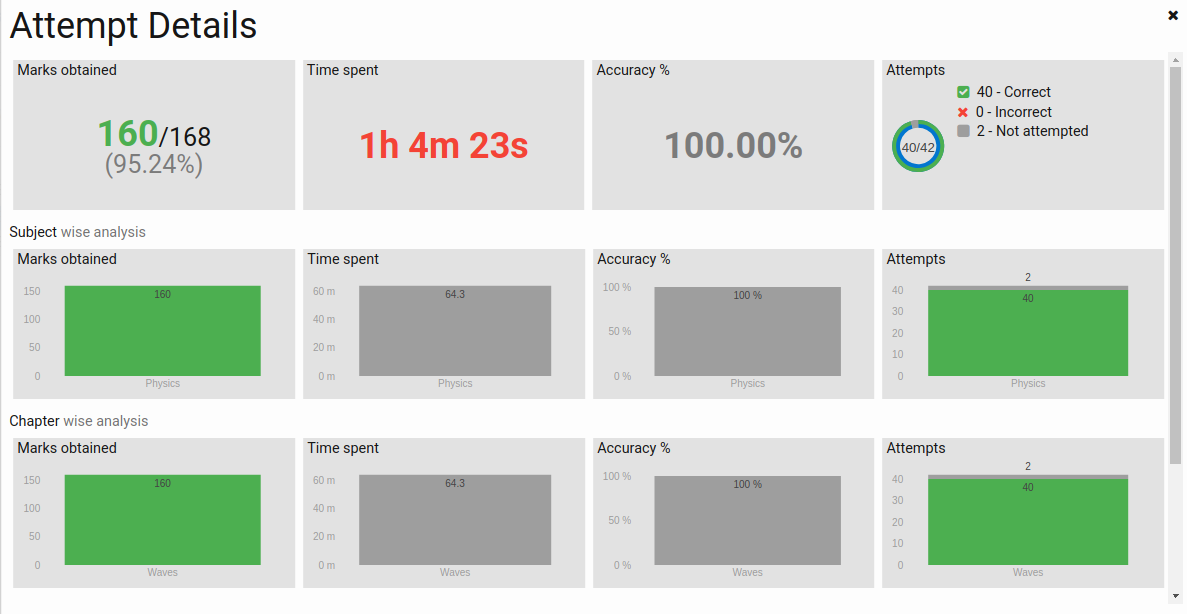
The analysis dialog shows a comprehensive breakdown of the candidate's performance in that specific attempt.
# Summary tiles
| Tile | What it shows |
|---|---|
| Marks Obtained | Score vs. maximum marks, displayed as a ratio and progress indicator |
| Duration | Time the candidate spent vs. total allowed time |
| Accuracy | Percentage of attempted questions answered correctly |
| Attempts | Breakdown of all questions into: Correct, Incorrect, Not Attempted, Partially Correct, Not Evaluated |
# Tag group-wise analysis
Below the summary tiles, the report shows performance broken down by each Tag Group in your Tag Catalog (for example, by Subject, Chapter, or Difficulty). For each group you see four charts:
| Chart | What it shows |
|---|---|
| Marks obtained | Score per tag (e.g., per subject) |
| Time spent | How long the candidate spent on questions in each tag |
| Accuracy % | Accuracy rate per tag |
| Attempts | Correct / Incorrect / Not Attempted breakdown per tag |
This makes it easy to identify which topics the candidate performed well in and where they struggled.
Back to: Question Papers Overview