Searching Question Papers
Learn how to find question papers using filters, and how to use bulk update to change status or tags across multiple papers at once.
The Search page lets you browse all papers in your library, apply filters to narrow results, and perform bulk updates across multiple papers at once.
# Opening the Search Page
From the Question Papers home page, click Browse All. The search page opens showing all your papers.
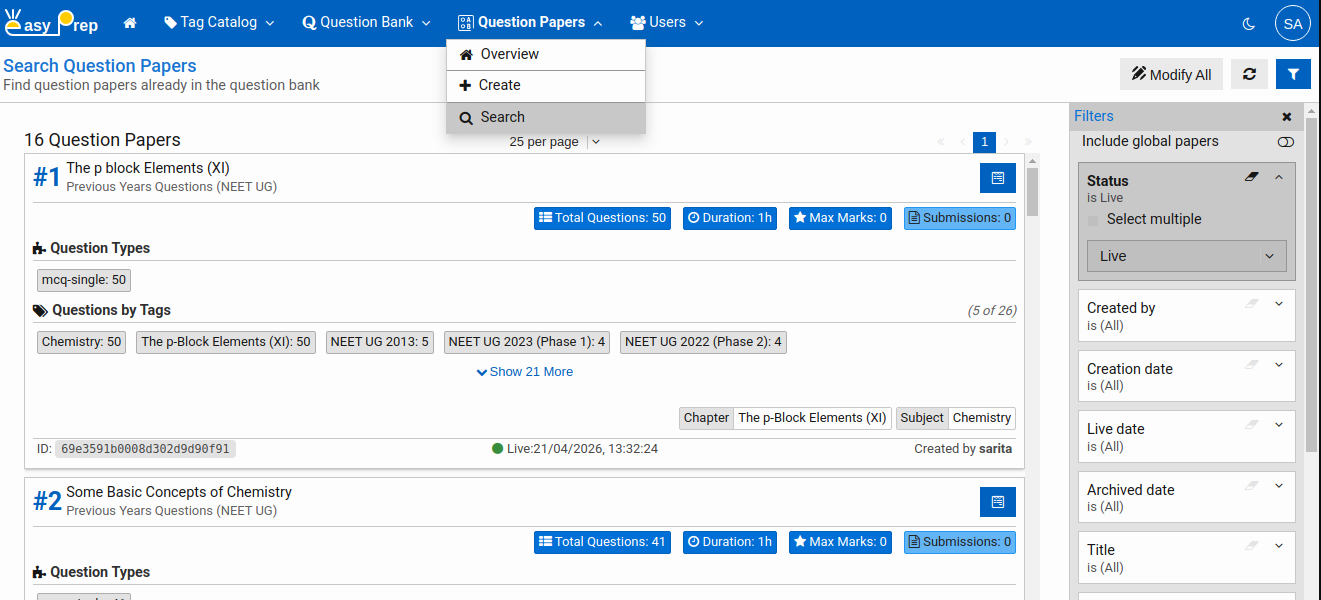
# The Filter Panel
Click the Filter button to open all available filters. You can combine multiple filters — results show only papers that match all active filters simultaneously.
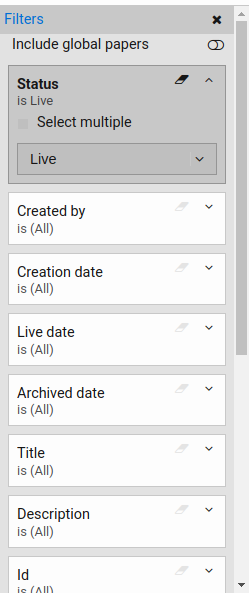
# Available filters
| Filter | Description |
|---|---|
| Include global papers | Toggle to also show platform-wide papers shared across all institutions |
| Status | Filter by publish status: Under Review, Live, or Withdrawn |
| Created by | Find papers created by a specific user — start typing a name to search |
| Creation date | Show papers created within a date range |
| Live date | Show papers published within a date range |
| Archived date | Show papers withdrawn within a date range |
| Title | Filter by the paper's title text |
| Description | Filter by the paper's subtitle / description text |
| Id | Look up a specific paper by its unique ID |
| Tag filters | Each Tag Group in your Tag Catalog appears as a filter. Select tags to narrow results by subject, exam type, or any other classification |
# Search Results
The results list shows matching papers with their title, status, creation date, and tags. Click on the top right View Details button to open it.
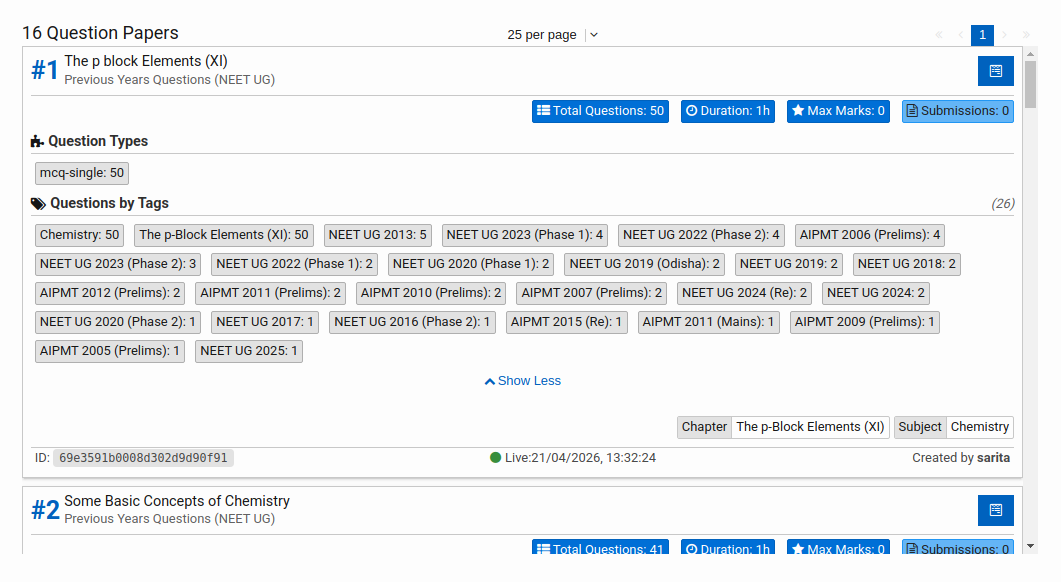
# Opening and Editing a Paper
Click on the top right View Details button in the results to open it. Papers with Under Review or Withdrawn status open in the editor and can be modified. Live papers open in read-only mode.
To edit a live paper, it must be put Under Review first.
# Bulk Update
Use Modify All button to change a property across many papers simultaneously instead of updating them one by one.
Important: Bulk Update applies to all papers matching your current filter, including Live papers. Check your active filters carefully before proceeding.
# How to run a Bulk Update
- Apply filters to narrow down to the papers you want to update.
- Click the Bulk Update button in the toolbar.
- A dialog opens showing how many papers are matched.
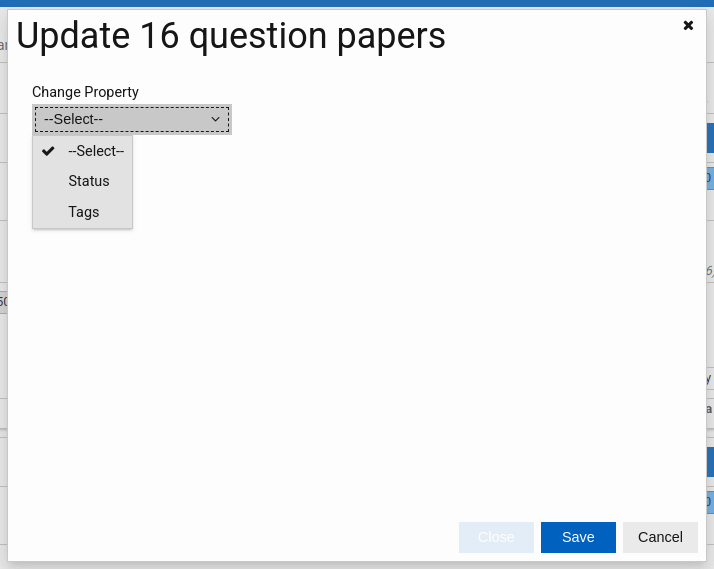
# Choosing what to update
Paper bulk update supports two update types:
| Update type | What it changes |
|---|---|
| Status | Changes every matched paper's publish status (e.g., set all to Withdrawn) |
| Tags | Adds tags to all matched papers, or replaces their existing tags entirely |
For Tags, you also choose whether to add the selected tags to existing tags or replace existing tags with the new selection.
# Limits
Bulk Update can process up to 100 papers at a time. If your filter returns more than 100 results, narrow the filter before proceeding.
# After the update
A summary shows how many papers were updated. Click Done to close the dialog and return to the refreshed results.
Next: