Bulk Update Questions
Learn how to use bulk update to change status, source, or tags across many questions at once.
When you need to change a property across many questions at once, use Bulk Update instead of editing questions one by one.
Important: Bulk Update applies changes to all questions matching your current filter, including Live questions. Review your active filters carefully before proceeding.
# How to run a Bulk Update
- Go to Question Search page.
- Apply filters on the search page to narrow down to the questions you want to update.
- Click the Modify All button in the toolbar.
- A dialog will open showing how many questions are matched.
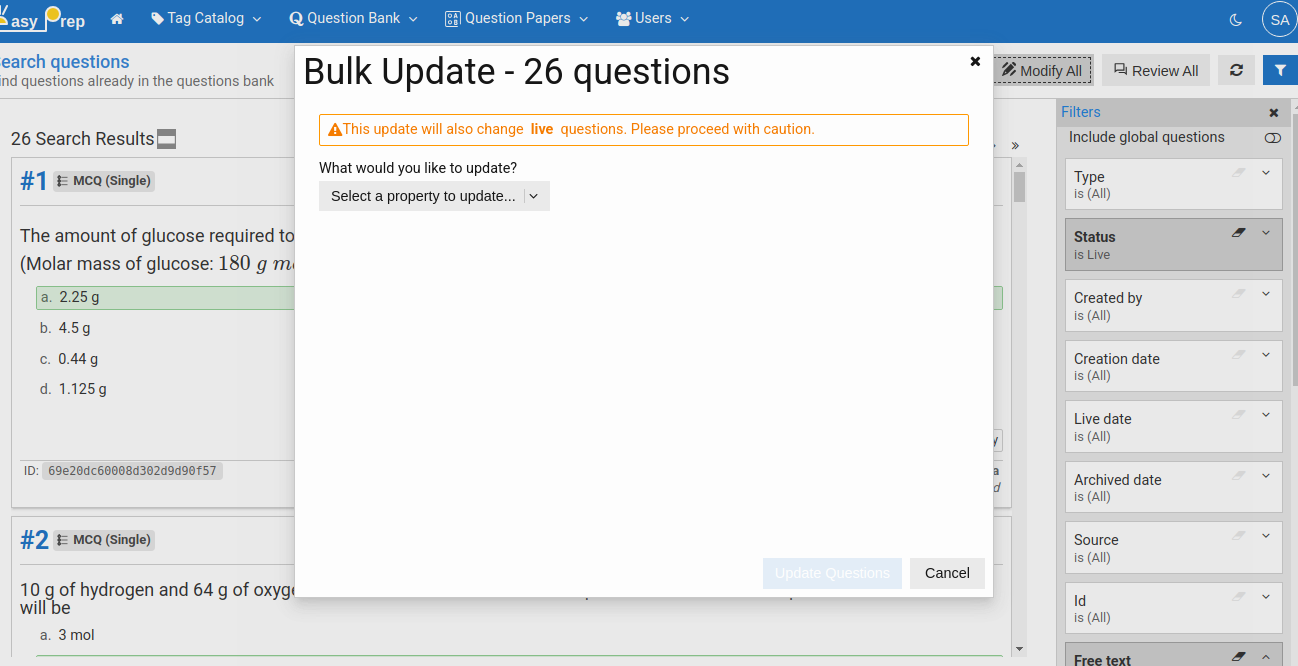
# Choosing what to update
Select one of the three update types from the menu:
| Update type | What it changes |
|---|---|
| Status | Changes every matched question's status (e.g., set all to Under Review or Withdrawn) |
| Source | Overwrites the source/origin text on all matched questions |
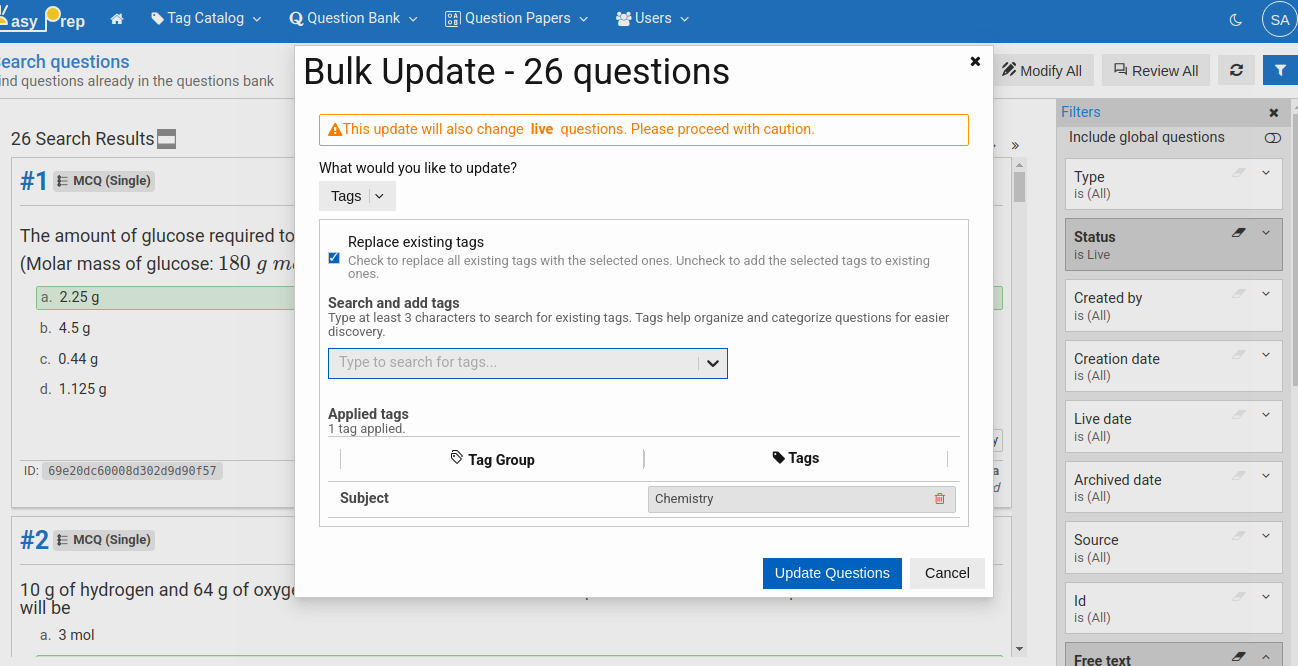
| Tags | Adds tags to all matched questions, or replaces their existing tags entirely |
For Tags, you also choose whether to add the selected tags to existing tags or replace existing tags with the new selection.
- Fill in the new value for the chosen update type.
- Click Update Questions to apply.
# Limits
Bulk Update can process up to 100 questions at a time. If your filter returns more than 100 results, the Update button will be disabled with a message asking you to narrow your filter first.
# After the update
Once the update completes, a results summary is shown — how many questions were updated successfully and whether any failed. Click Done to close the dialog and return to the search results (which will automatically refresh).
Back to: Question Bank Overview