Searching and Filtering Questions
Learn how to search the Question Bank and apply filters
The Search page lets you find any questions in your Question Bank quickly. You can narrow results using a rich set of filters.
# Opening the Search Page
From the Question Bank home page, click Browse All. The search page opens showing all your questions.
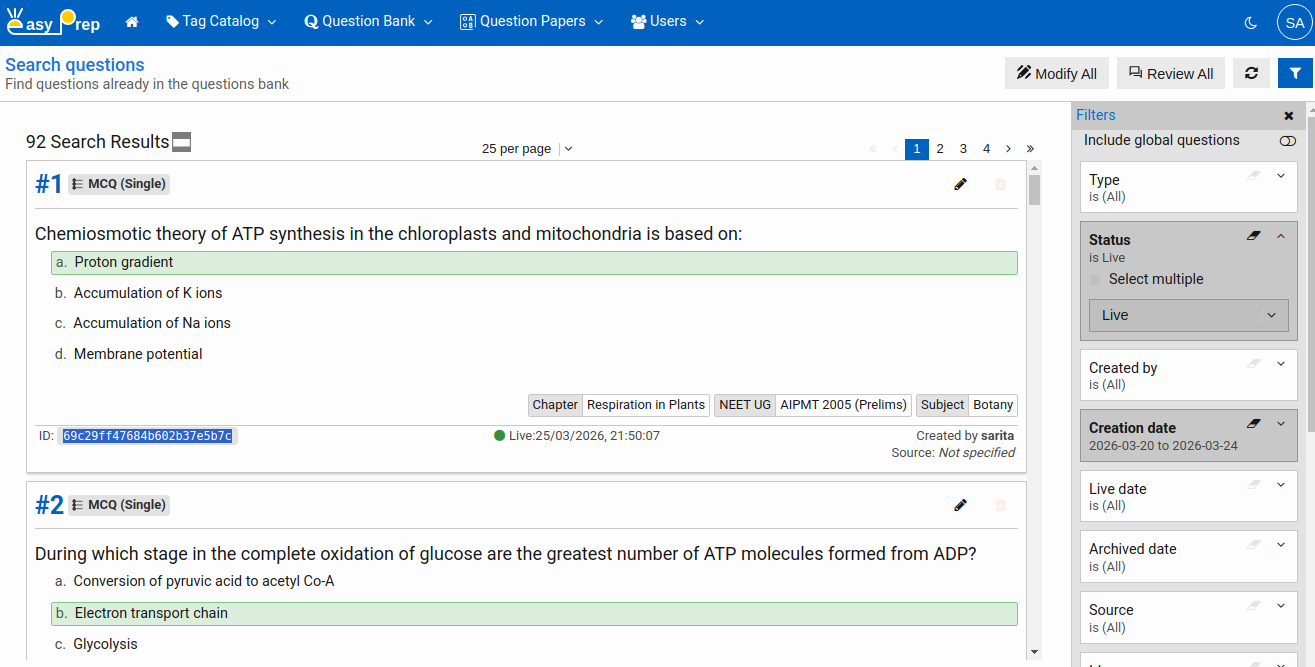
# The Filter Panel
Click the Filter button (or it may be shown as a side panel by default) to reveal all available filters. You can combine multiple filters — results show only questions that match all active filters simultaneously.
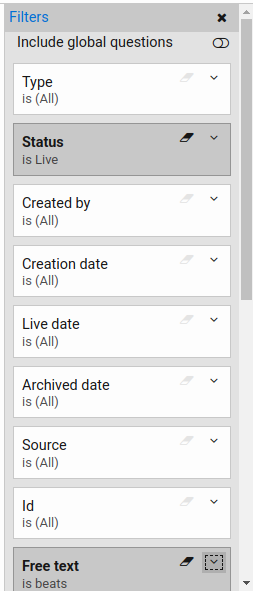
# Available filters
| Filter | Description |
|---|---|
| Include global questions | Toggle to also show questions shared across all institutions (platform-wide content) in addition to your own |
| Type | Filter by question type: Single Choice, Multiple Choice, or both |
| Status | Filter by publish status: Under Review, Live, or Withdrawn |
| Created by | Search for questions created by a specific user. Start typing a name to find users |
| Creation date | Show questions created within a date range |
| Live date | Show questions that were published within a date range |
| Archived date | Show questions that were withdrawn within a date range |
| Source | Filter by the question's source/origin text |
| Id | Look up a specific question by its unique ID |
| Free text | Full-text search within all question content |
| Tag filters | Each Tag Group in your Tag Catalog appears as a separate tag filter. Select one or more tags within a group to filter by that classification |
You can clear all active filters at any time to start fresh.
# Free Text Search
At the top of the page there is a search bar. Type any word or phrase to search across question content, choices, explanations, and notes. Results update when you loose focus from the textbox.
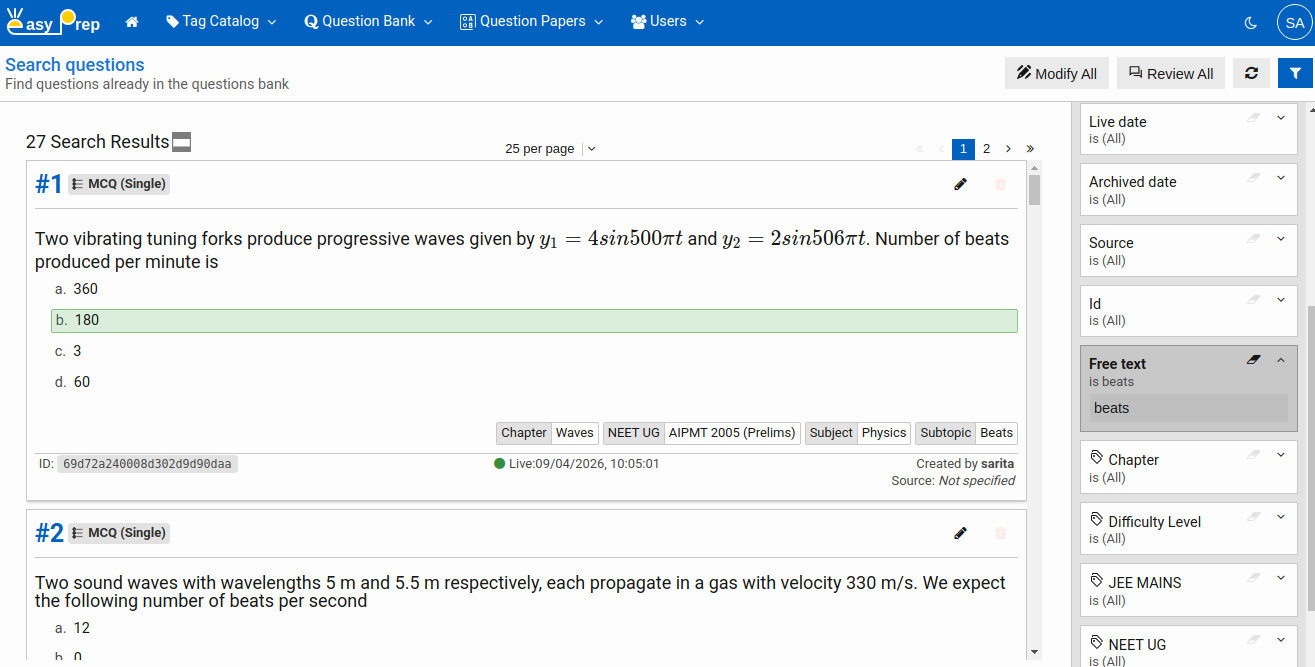
# Search Results
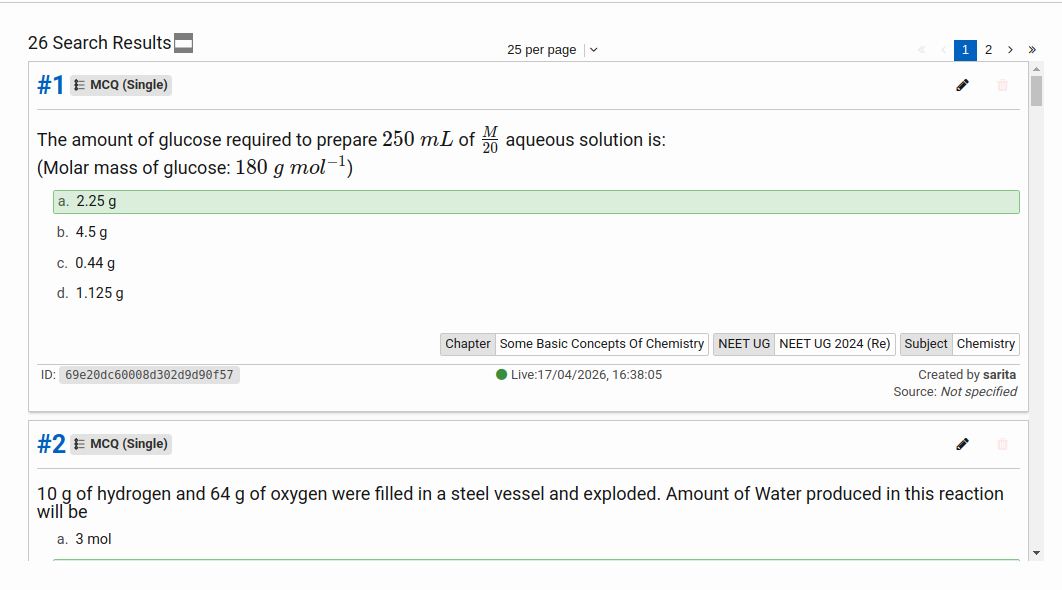
The results list shows matching questions with key columns — question type, status, source, tags, and creation date.
Results are paginated. Use the page controls at the top to move through large result sets.
Next: Bulk Update — learn how to bulk update questions