Creating Questions
A step-by-step guide to adding new questions to the Question Bank, using the editor tabs, the OCR tool, and saving your work.
This guide walks you through creating a new question from start to finish. The Question Bank editor is organized into tabs so you can fill in each aspect of a question separately, and save at any point.
# Step 1 — Open the Question Bank
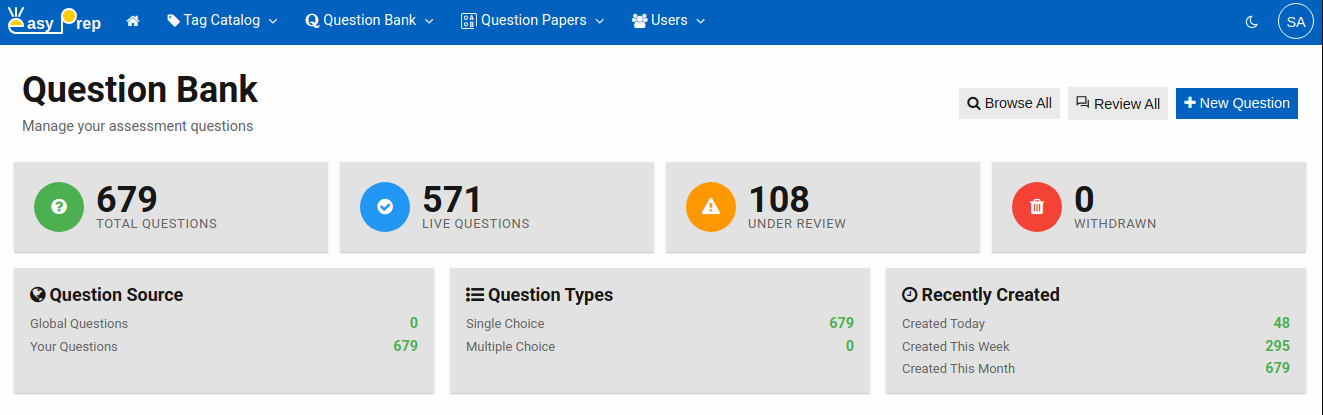
Navigate to Question Bank from the main menu. On the home page, click New Question.
# Step 2 — Choose a Question Type
Before the editor opens, select the type of question you want to create:
| Option | When to use |
|---|---|
| MCQ – single option valid | There is exactly one correct answer |
| MCQ – multiple options valid | Two or more answers are correct |
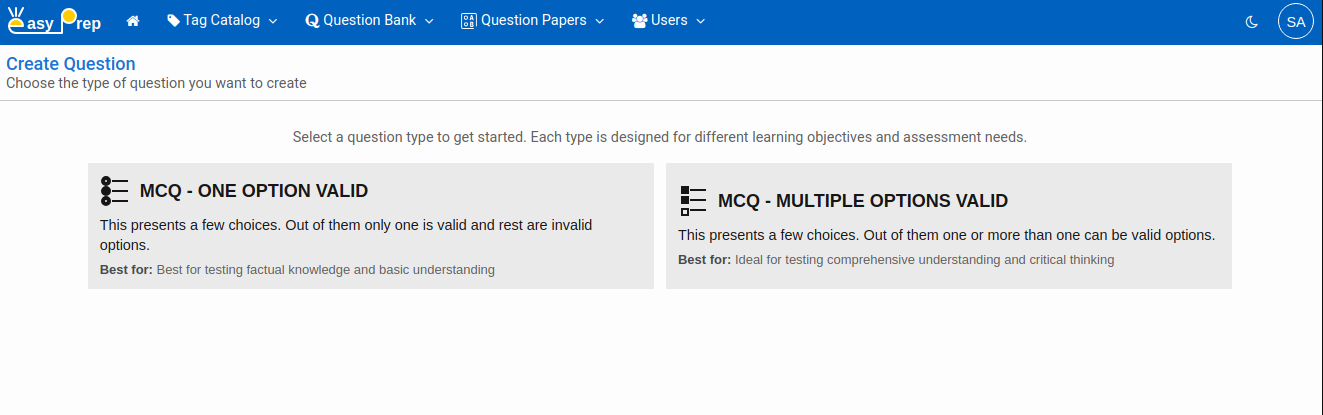
Note: You cannot change the type after a question is created.
# Step 3 — Fill In the Question
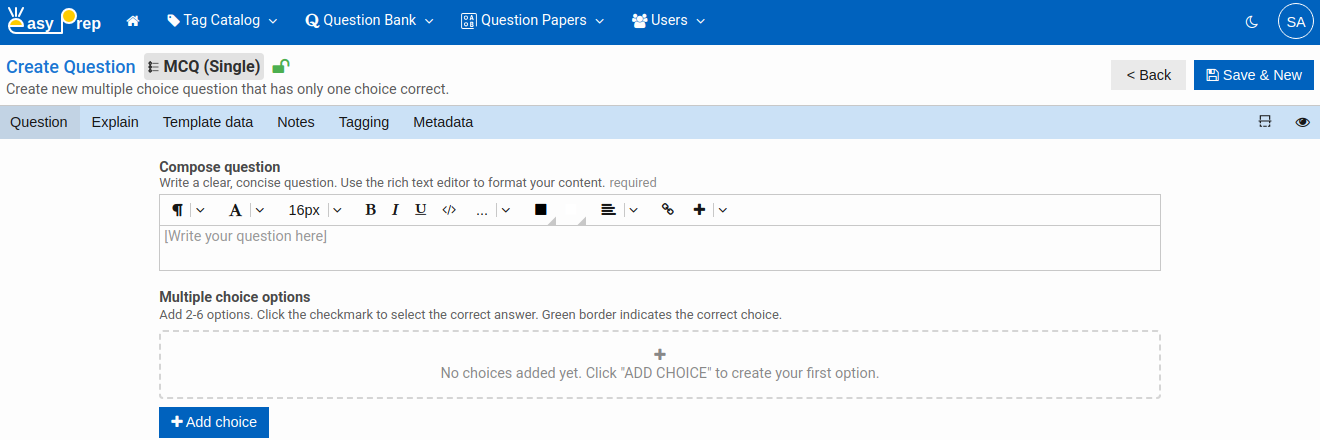
The editor has multiple tabs across the top. Work through them from left to right:
# Question tab
This is where you write the core content.
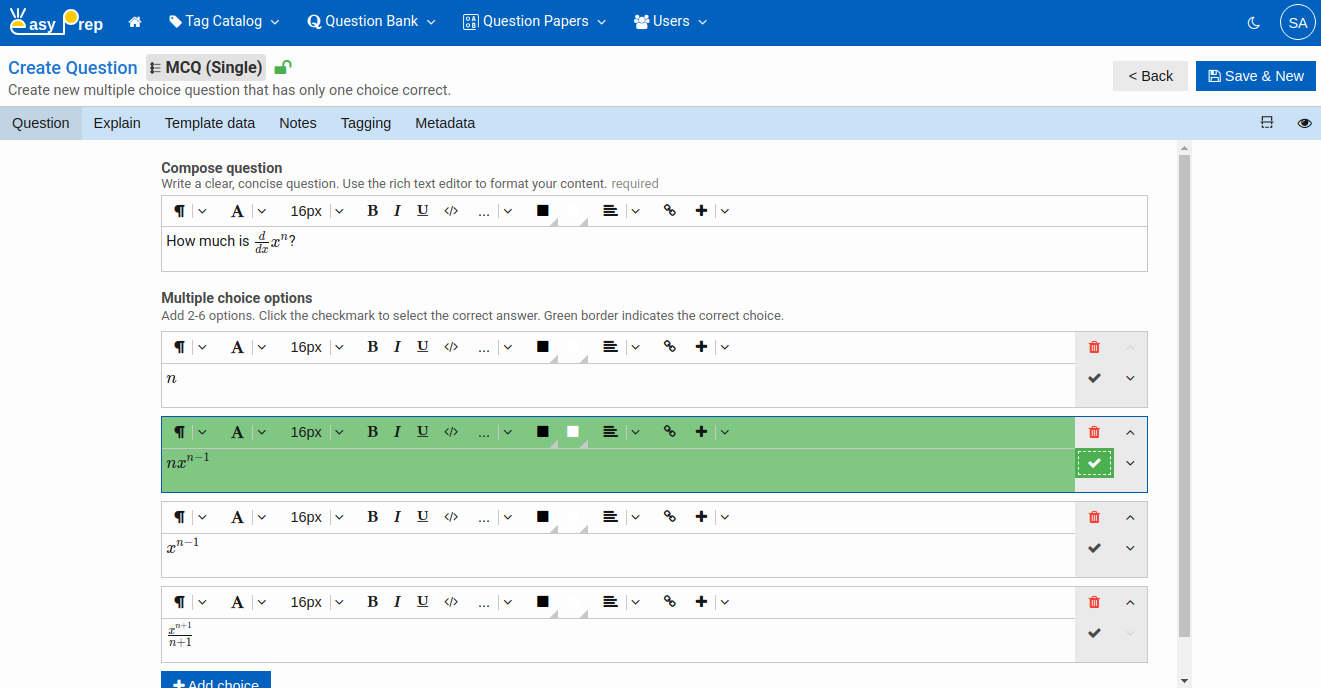
Question text — Type the question in the rich text field. You can bold, italicize, include mathematical expressions, or add inline images using the formatting toolbar.
Choices — Below the question text you will find button to add choices. Click on that to add from 2 to 6 choices. Click into each choice field and enter the option text. Use the same rich text formatting if needed.
Answer key
- For a single-choice question, click the check button next to the one correct option.
- For a multiple-choice question, click all check buttons that are correct answers.
# Explain tab
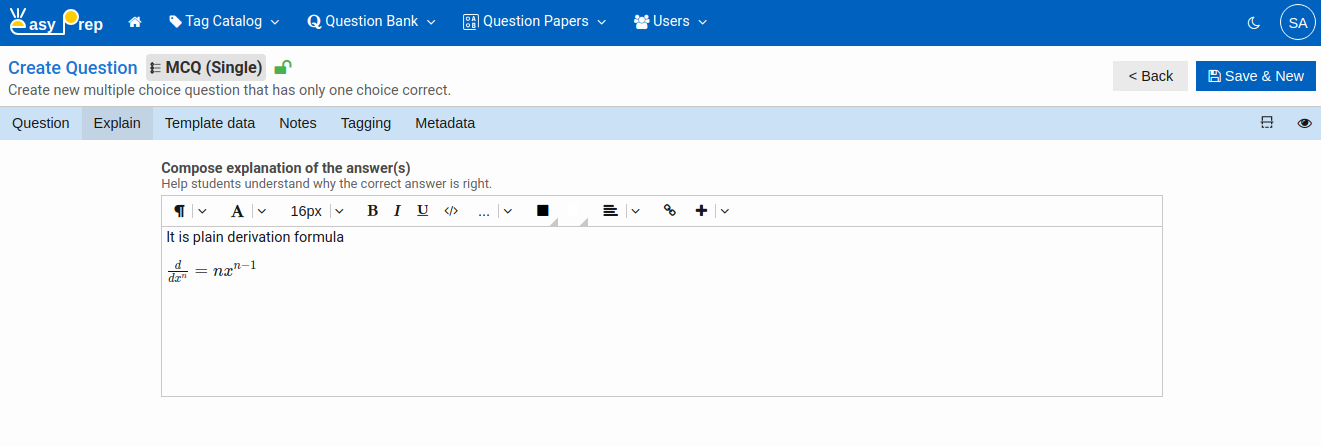
Add an explanation for the correct answer. This is shown to students after they attempt the question so they can understand why the answer is correct.
The explanation field supports the same rich-text formatting as the question itself.
# Notes tab
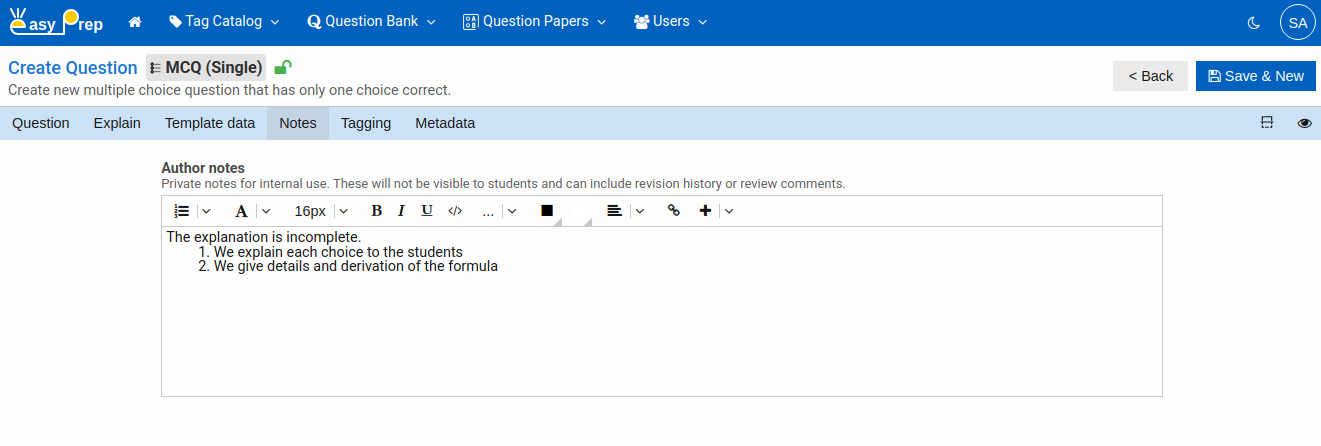
Write any private notes for question authors or reviewers. Notes are never shown to students. Use this tab to flag issues, record assumptions, or leave instructions for the reviewer.
# Tagging tab
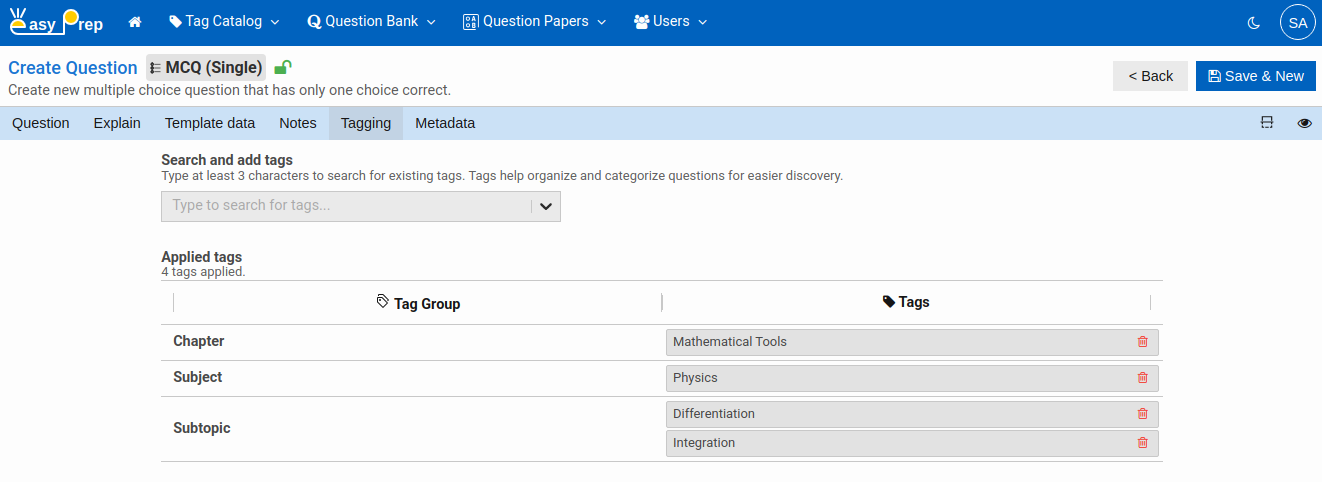
Assign tags from your Tag Catalog to classify this question. Tags are grouped by Tag Group (for example, Subject, Chapter, Difficulty). Select the appropriate tags from each group.
Tags control how questions can be searched and filtered, and which questions appear in a paper when you use tag-based selection rules.
Refer to the Tag Catalog overview for details on how tags are structured.
# Metadata tab
Fill in the Question source field — this is a free-text record of where the question came from (for example, "NCERT Class 12 Physics, Chapter 3").
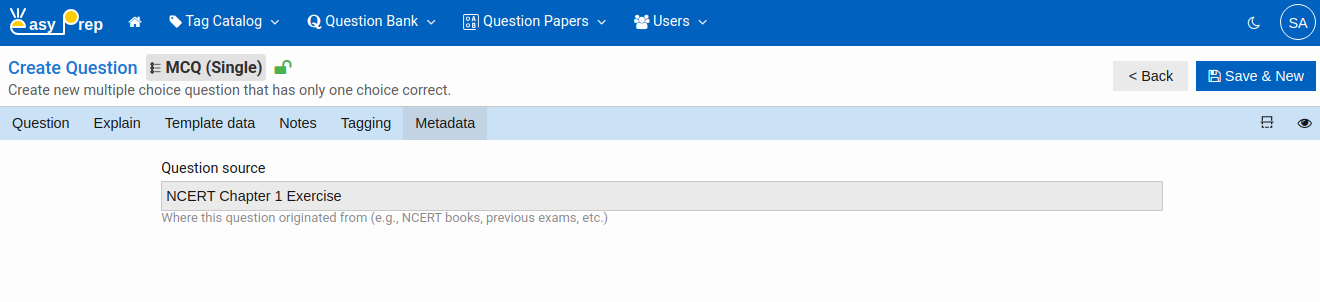
Source information helps with attribution and also makes it easy to search or filter questions by origin later.
# Step 4 — Save the Question
Once you have filled in the tabs, use Save & New button at the top. It saves the current question and immediately opens a blank editor of the same type, so you can continue adding more questions without navigating back
A newly saved question is automatically placed in Under Review status. It is not yet live or available in tests.
Note: You can use OCR tools to create question in bulk.
# Editing an Existing Question
To edit a question you have already created:
- Go to Question Bank → Browse All to open the search page.
- Find the question (use filters or free-text search).
- Click the question row to open it in the editor.
You can edit all tabs and save your changes. Note that questions with Live status are read-only — they cannot be edited. To edit a live question, it must first be Withdrawn (see Reviewing Questions).
# Deleting a Question
A question can be deleted only when its status is Under Review or Withdrawn. Live questions cannot be deleted.
To delete: Open the question in the editor and click the Delete button in the toolbar. You will be asked to confirm before the question is permanently removed.
Next: Reviewing Questions — learn how to review and publish questions.