How to use OCR Tools
Learn to use OCR tools to ease adding new questions to the question bank.
This guide walks you through using OCR tools for creating questions.
# Step 1 — Acquire the questions
Before you use OCR, you need to have either a pdf or questions picture.
- To create pdf from printed books, you can use
- Document Scanner
- Adobe scan app
- any other favorite pdf app
- You can take pictures direction from your phone camera and upload it to your compute.
# Step 2 — Go to Create Question and open OCR Tools section
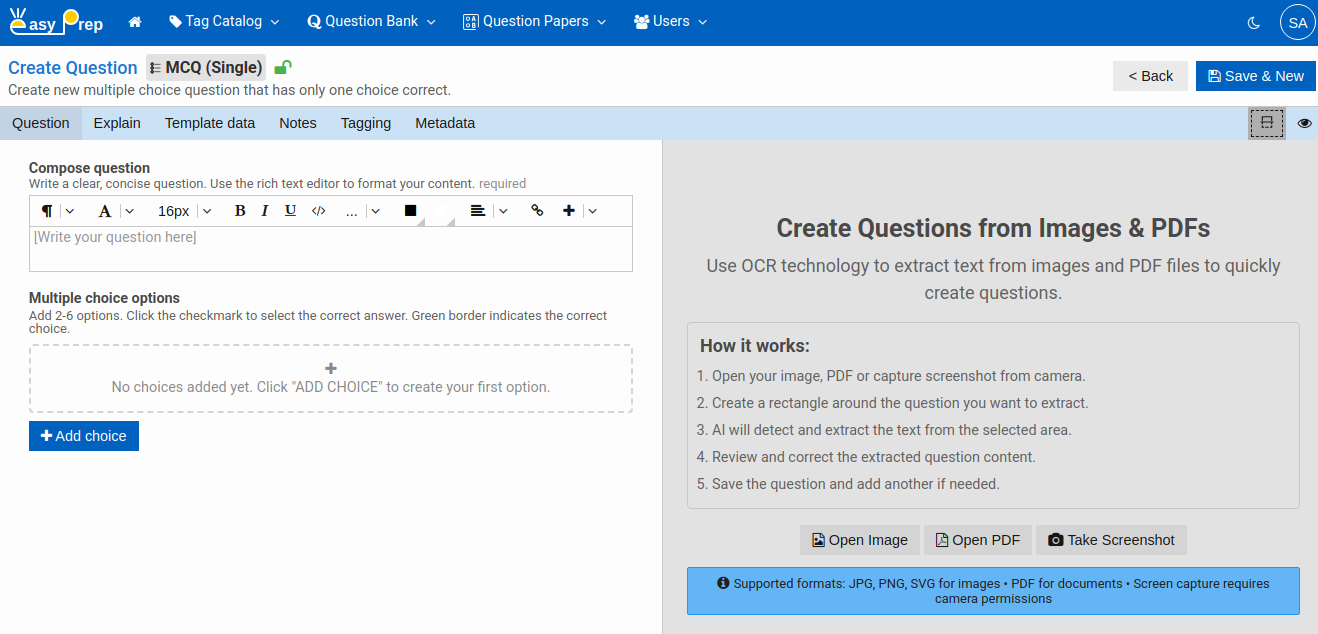
Go to question editor (Question Bank -> Create -> select question type). In the Question Editor, click on open OCR tool.
# Step 3 — Open Question Source
-
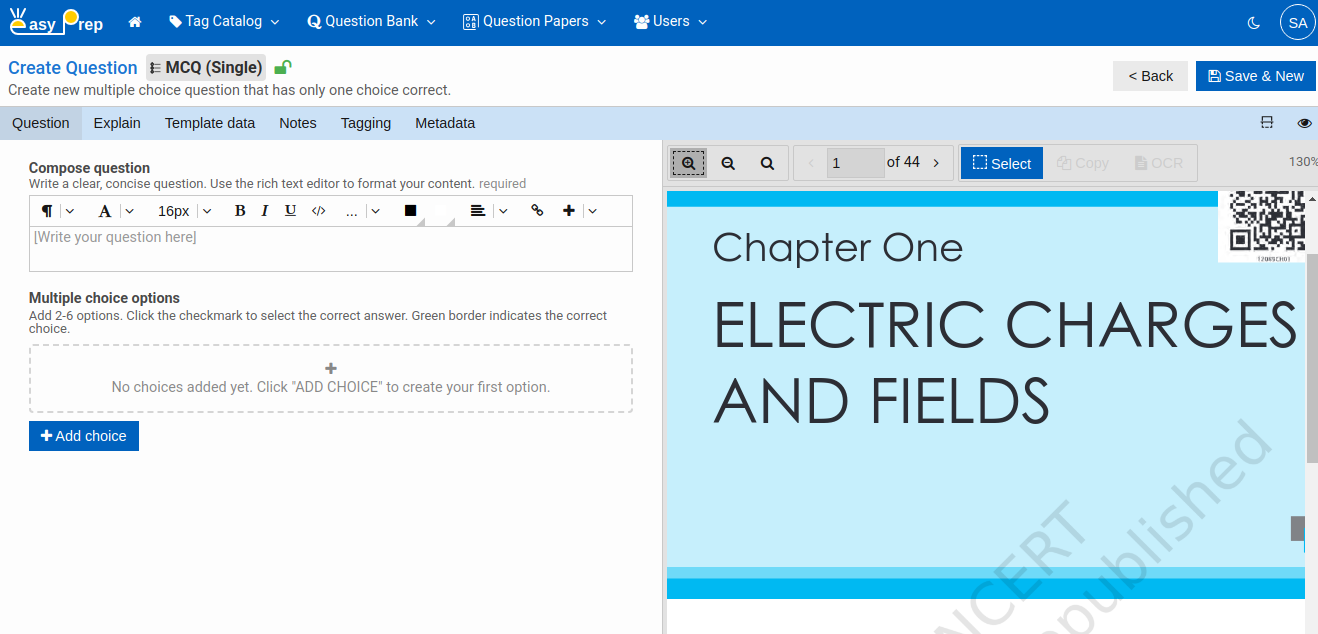
For images, you need to click on Open Image. For pdf, you need to click on Open PDF button. This opens the pdf/image viewer in the right of the editor.
-
Select right amount of zoom.
-
Select correct page.
-
Click on Select button:
# Step 4 — Select Right Tool and Start Editing
You can drag on the image/pdf to point to the area of interest. After that,
# Copy Tool
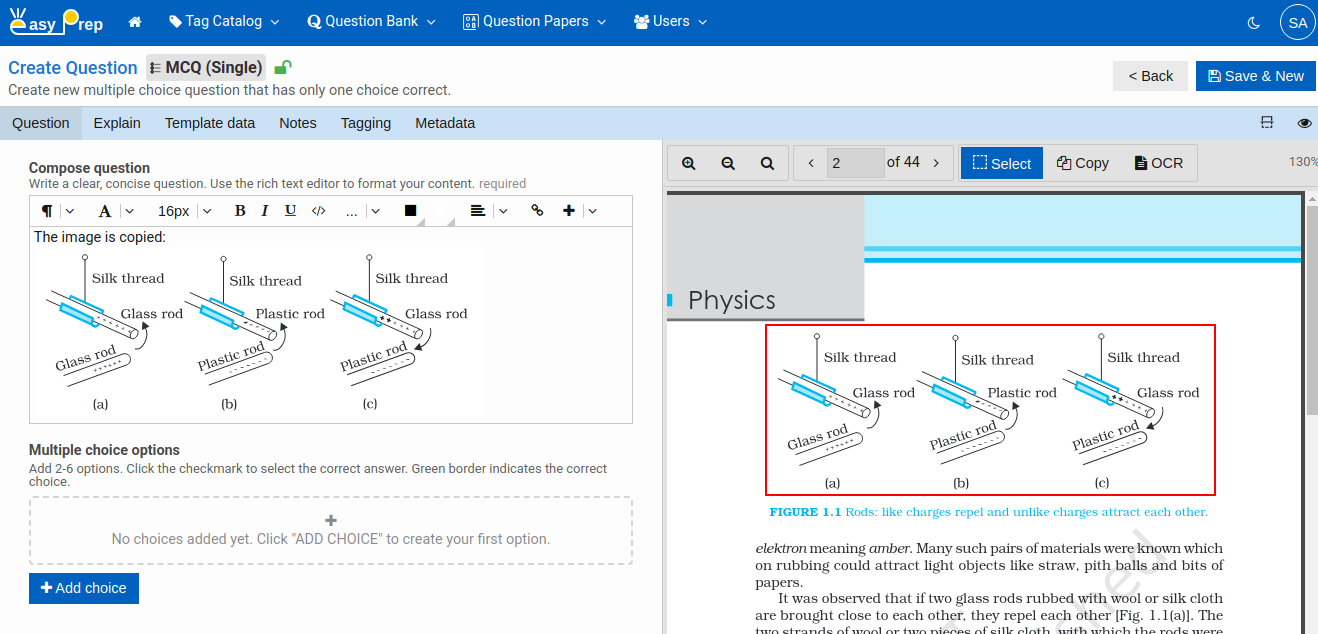
On Click of copy tool, the rectangular area gets copied to the clipboard and you can paste (CTRL+V) any where on the editor (either questions or choices)
# OCR Tool
On Click of OCR tool, the rectangular area gets OCRed and system tries to find out question and its choices. Then it creates a question with the choices it is able to find.
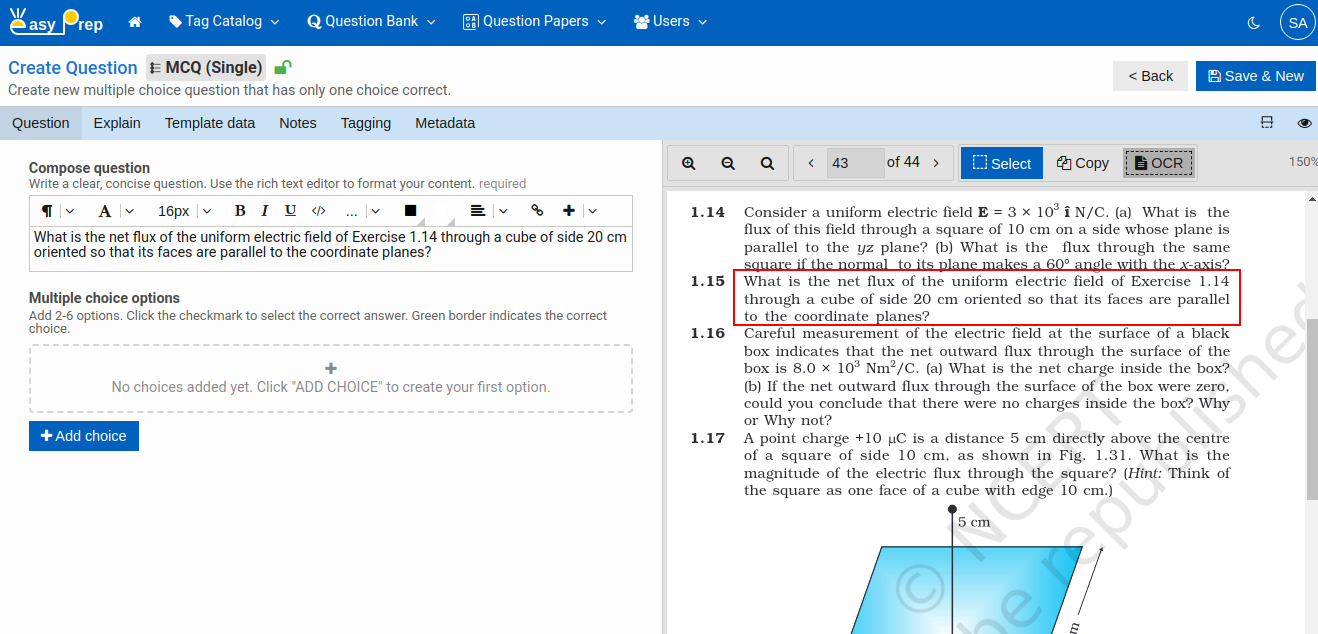
Once OCR text is in the question, you can verify the text, correct it if wrong and save the question.
Note: OCR is not able to detect Mathematics notations correctly. For this, you can update the tex inline.
Next: Reviewing Questions — learn how to review and publish questions.