Reviewing Questions
Learn how to review questions in the Question Bank and publish or withdraw them.
Questions can be entered by data entry staff. And they may make mistake while creating questions. To avoid such mistakes, reviewing the questions is necessary by SMEs (Subject Matter Expert).
As soon as a question is created in EasyPrep, it becomes available for review. It can not be directly used in assessments. iTt must be reviewed and published. SMEs must inspect the questions for accuracy, completeness and correctness. When they find it right on their parameters, they approve them by publishing.
# Understanding Review Status
Every new question is created with the status Under Review. This is the holding area where questions wait to be inspected. Once approved, a reviewer publishes the question and its status changes to Live. If a question needs to be retired, it can be Withdrawn.
Under Review → Live → Withdrawn
- Under Review questions can be edited and deleted.
- Live questions are active and cannot be edited or deleted.
- Withdrawn questions are inactive and can be deleted but not directly re-published (publish again after editing if needed).
# Starting a Review Session
The review session lets you move through questions one by one in a focused flow, without going back to the search page each time.
# Option 1 — Review from the home page
- Go to Question Bank from the main menu.
- Click Review All.
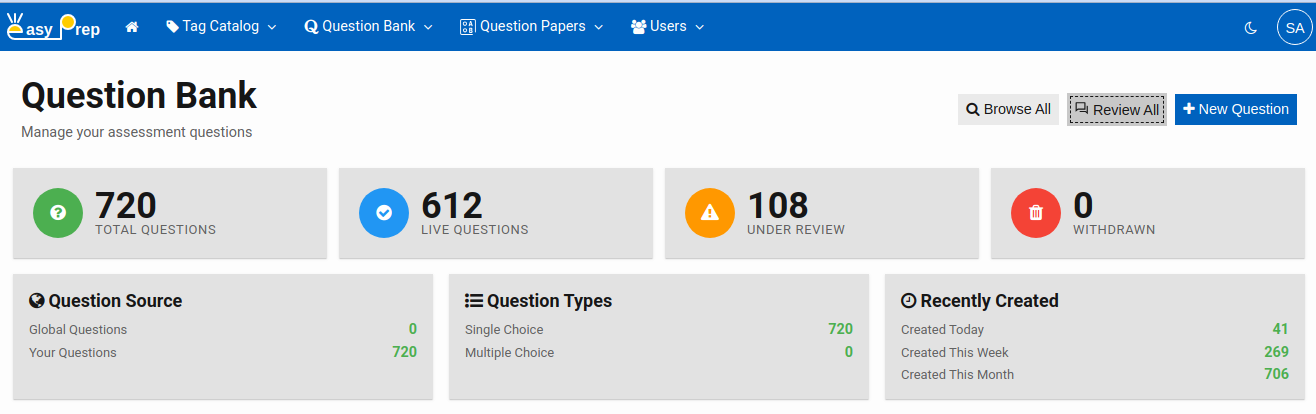
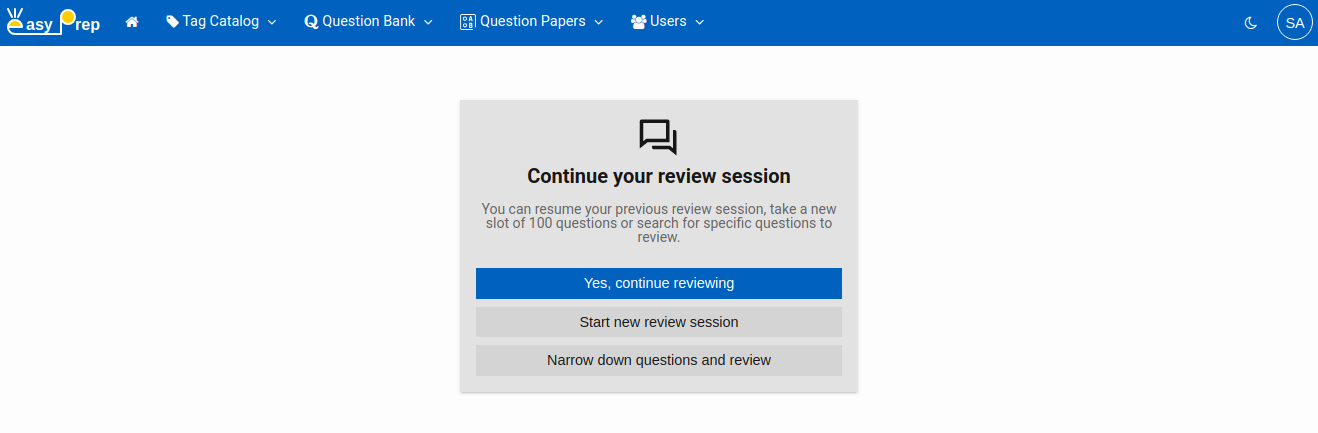
The Review page will appear with three options:
| Option | What it does |
|---|---|
| Yes, continue reviewing | Picks up where your last session left off (appears only if you have a previous session) |
| Start new review session | Loads up to 100 questions with status "Under Review" and begins from the first one |
| Narrow down questions and review | Takes you to the search page so you can filter questions first, then review only the filtered results |
# Option 2 — Review filtered results from search
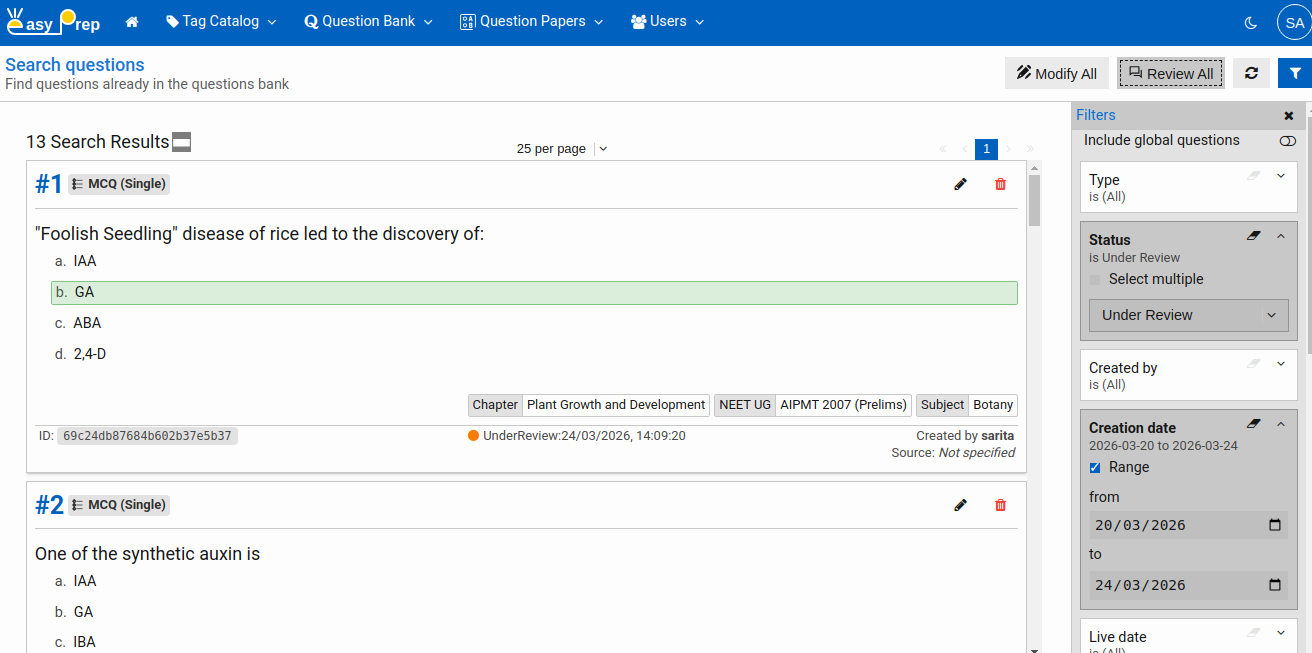
If you want to review a specific subset (for example, only questions tagged with a particular subject/subtopic):
- Go to Question Bank → Browse All.
- Apply filters to narrow the results — status, tags, date, etc.
- Click the Review button in the search toolbar.
This loads your filtered set as the review session, and you navigate through only those questions.
# Reviewing a Question
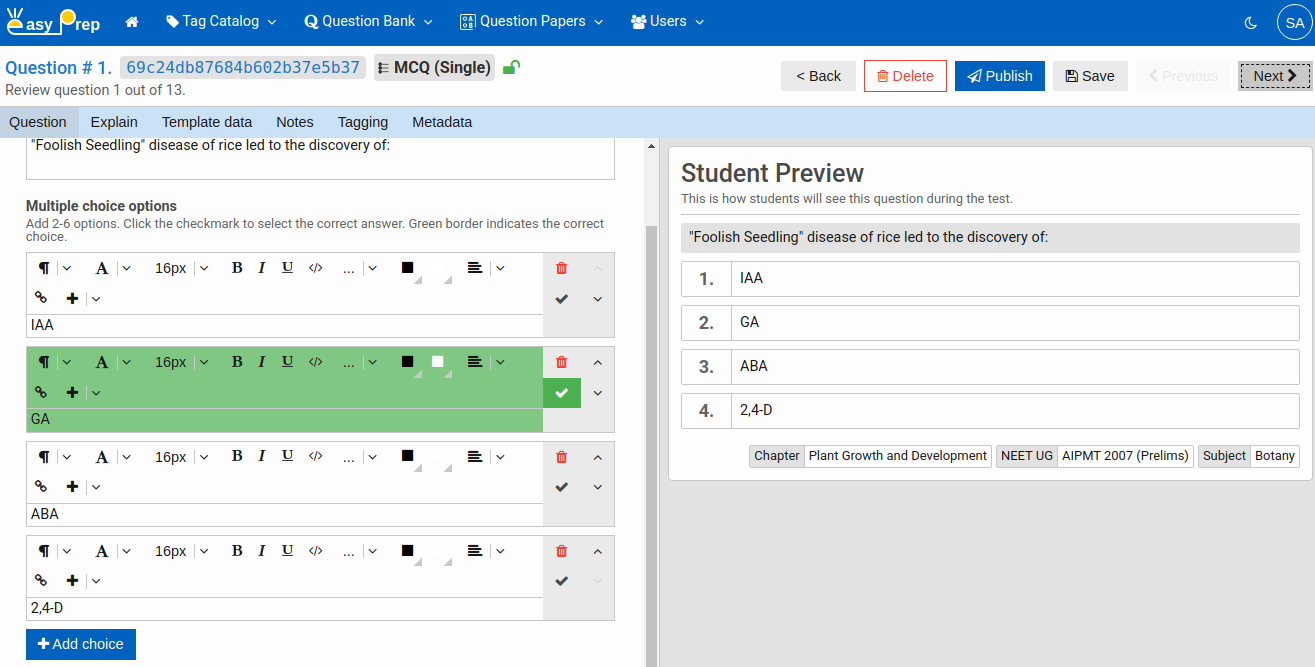
Once a session is started, you are taken to the question editor in review mode. Review mode looks similar to the regular editor but with a few differences:
- A Preview panel is shown on the right side, displaying how the question will appear to students.
- The top toolbar shows Review Previous and Review Next buttons to move between questions in the session.
- The editor tabs (Question, Explain, Template data, Notes, Tagging, Metadata) are all available so you can inspect every part of the question.
# What to check during review
A reviewer should (but not limited to) inspect:
- The question text for clarity and correctness
- All choices — are they plausible? Is the correct answer actually correct?
- The explanation — does it clearly justify the right answer?
- Tags — are the right subjects, chapters, and difficulty levels assigned?
- Source — is the attribution filled in?
- Author notes — any flags left by the question creator?
# Publishing a Question
When a question passes review, click Publish in the toolbar. The question's status changes to Live and it becomes available for use in papers and test sessions.
After publishing, the editor becomes read-only for that question. The application presents you the next question in the session automatically.
Note: You must Save your question if you made changes in the question before publishing.
# Navigating the Review Session
Use the toolbar buttons to move through questions:
| Button | Action |
|---|---|
| Review Next | Move to the next question in the session |
| Review Previous | Go back to the previous question |
Your session remembers your position. If you move to other screens and return later, you can choose Continue reviewing from the Review home page to pick up where you left off.
Next: Searching and Filtering — learn how to find questions and perform bulk updates.